
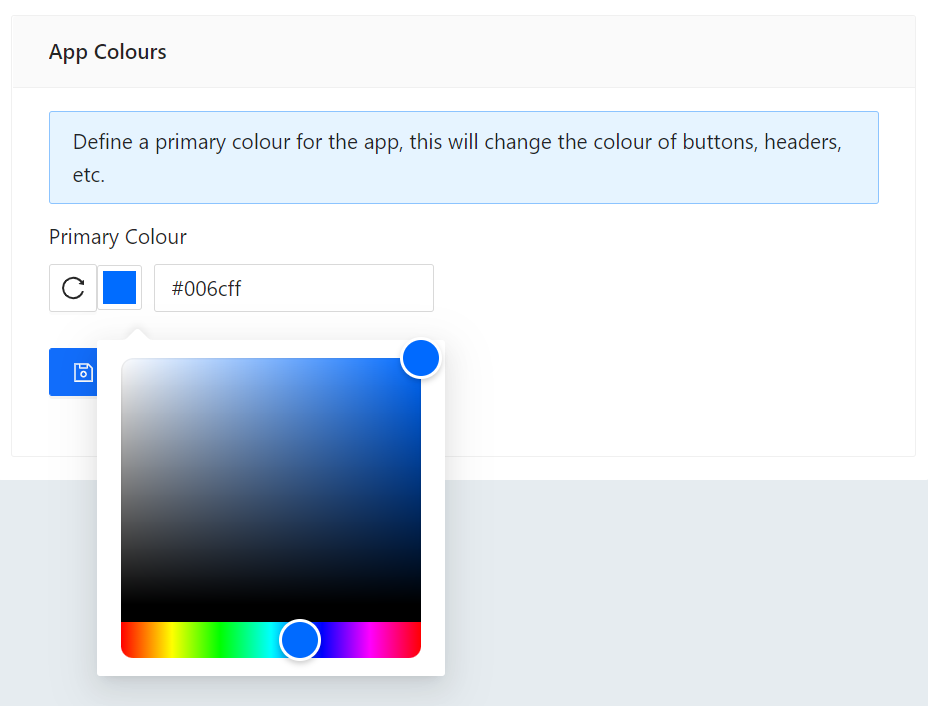
Changing the colour of the Community QA app
Community QA
The Pubble Community QA app enables you add a threaded QA onto you web pages. This is great for product pages where you only need Q&As relating to that product to be displayed.
Create new Community QA
To create a new Community QA go to the admin center: Apps > Community QA > New App you will be asked to give the new Community QA app a name and the app will be created with the default options applied.
Community QA Customisation
The primary colour of the app can be changed to suit page/company themes.
If more advanced customisations are required these can be requested to Pubble Admins. Please get in touch to discuss.
Community QA Position
The Community QA can be be displayed on your page in two ways:
On-Page
The app will be displayed as a thread on the page where you place the code inside your html
Sidebar
A clickable sidebar will be displayed on the page which will invoke a drawer containing the app to slide into the page

Sidebar and open drawer containing the Community QA
By default the on-page threaded layout will be displayed. To deploy with a sidebar, see below.
Deploy Community QA
To deploy a Community QA widget on your website you will need to have access to your CMS or HTML files. The Community QA widget is added by copying a Javascript code snippet into the body element of your HTML.
To get the code snippet, go the admin center and go to: Apps > Community QA select an app from the menu and click Deploy
Here you can select whether you want to display the app on-page or from a sidebar drawer. Make sur you select the display mode before copying the code as the selection will alter code slightly.

The code snippet you need to copy to your HTML
To create a unique thread for a page you need to set a unique value for the data-app-identifier data attribute in the code snippet, typically this might be a product ID
How the data-app-identifier is populated will depend on the technology used to serve your web pages (PHP, ASP, JSP, etc). Below is a pseudocode example of how the code snippet might look:
<div class="pubble-app" data-app-id="1234" data-app-identifier="${product.id}"></div>
<script type="text/javascript" src="https://cdn.pubble.io/javascript/loader.js" defer></script>
<script type="text/javascript" src="https://cdn.pubble.io/javascript/loader.js" defer></script>
Community QA Moderators
To add a moderator to an app you must be a community moderator. Got to the admin center: Apps > Community QA > [Select App] > Moderators
Click the Add Moderator button and input the name and email address of the moderator to add them
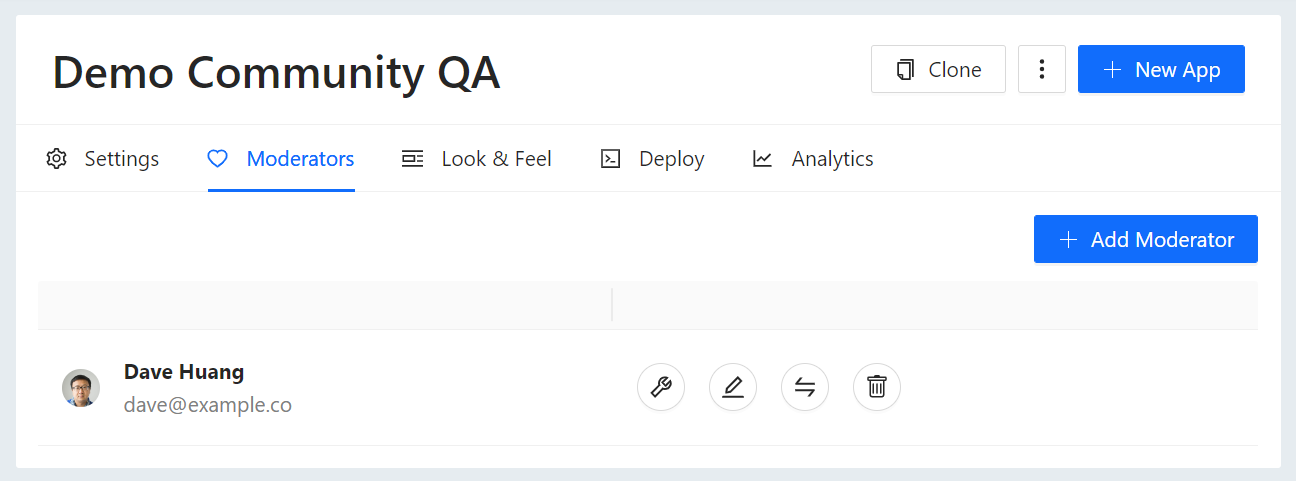
Adding a moderator to a Community QA app
Who should you add as a moderator? Anyone who will answer questions or assign questions.
What is a VIP? You can mark a moderator as a VIP. This is for the purpose of distinguishing on the user interface between people who will answer questions and moderators who will manage questions (assign, etc)
Privacy (GDPR)
You can enable a consent checkbox on the Community QA app that a user must tick before they provide any contact details.
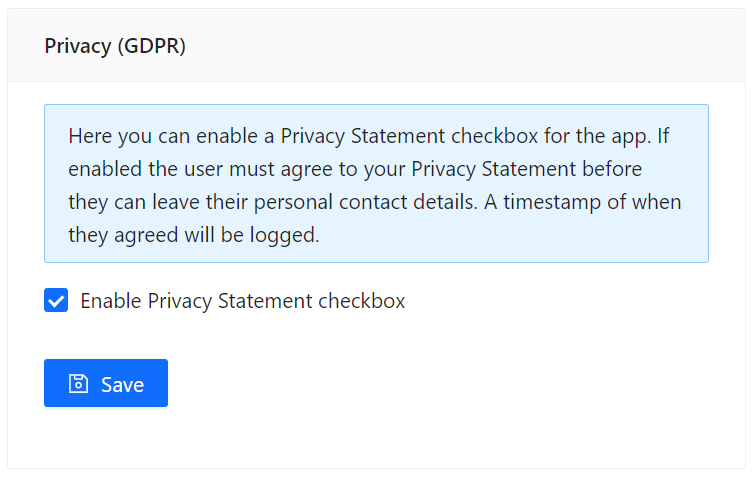
The privacy setting in the Admin Centre
Note: To enable this option you must first provide a Privacy Statement URL in the Privacy tab
Once enabled the following checkbox and Privacy Statement link will appear on the Community QA app where users submit contact details:

The consent checkbox on Community QA