
The app will be displayed as a thread on the page where you place the code inside your html
Live QA
The Pubble Live QA app enables you to host a real-time QA session on your website. For more information visit our Live QA page
This page details the technical set-up of a Live QA. To learn more about running an event, please see our Live Event guidelines
Create new Live QA
To create a new Live QA go to the admin center: Apps > Live QA > New App you will be asked to give the new Live QA app a name and the app will be created with the default options applied.
Watch our video on creating a Live QA event:
Live QA Appearance
The Live QA can be be displayed on your page in two ways:
On-Page
Sidebar
A clickable sidebar will be displayed on the page which will invoke a drawer containing the app to slide into the page
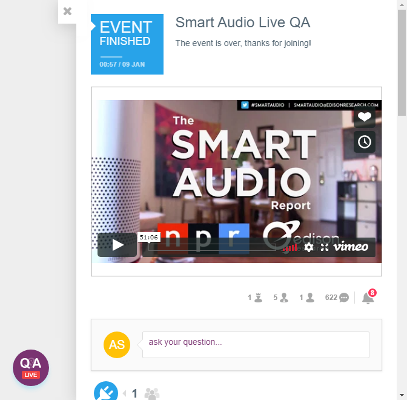
Sidebar and open drawer containing the Live QA
By default the on-page threaded layout will be displayed. To deploy with a sidebar, see below.
Deploy Live QA
To deploy a Live QA widget on your website you will need to have access to your CMS or HTML files. The Live Chat widget is added by copying a Javascript code snippet into the body element of your HTML.
To get the code snippet, go the admin center and go to: Apps > Live QA select an app from the menu and click Deploy
Here you can select whether you want to display the app on-page or from a sidebar drawer. Make sur you select the display mode before copying the code as the selection will alter code slightly.

The code snippet you need to copy to your HTML
Live QA Scheduling
You can schedule a time for your event to take place, you can also control whether visitors are able to post messages before and after the event, or only during the event.
To set a schedule go to the admin center: Apps > Live QA select the Live QA from the left menu and then select Schedule
Here you have several options available:
Allow posts before/after event
Allow visitors to post messages before and after the scheduled time
Timezone and start/end time
Set the start and end time for the event, and the timezone the event will take place in
Pre/post/during event blurb
You can apply some custom text which will change depending on the event state, for example during the event you might want to display "Our VIP is live now answering your questions" and when the event is over you can display "The event is over, thanks for joining!"
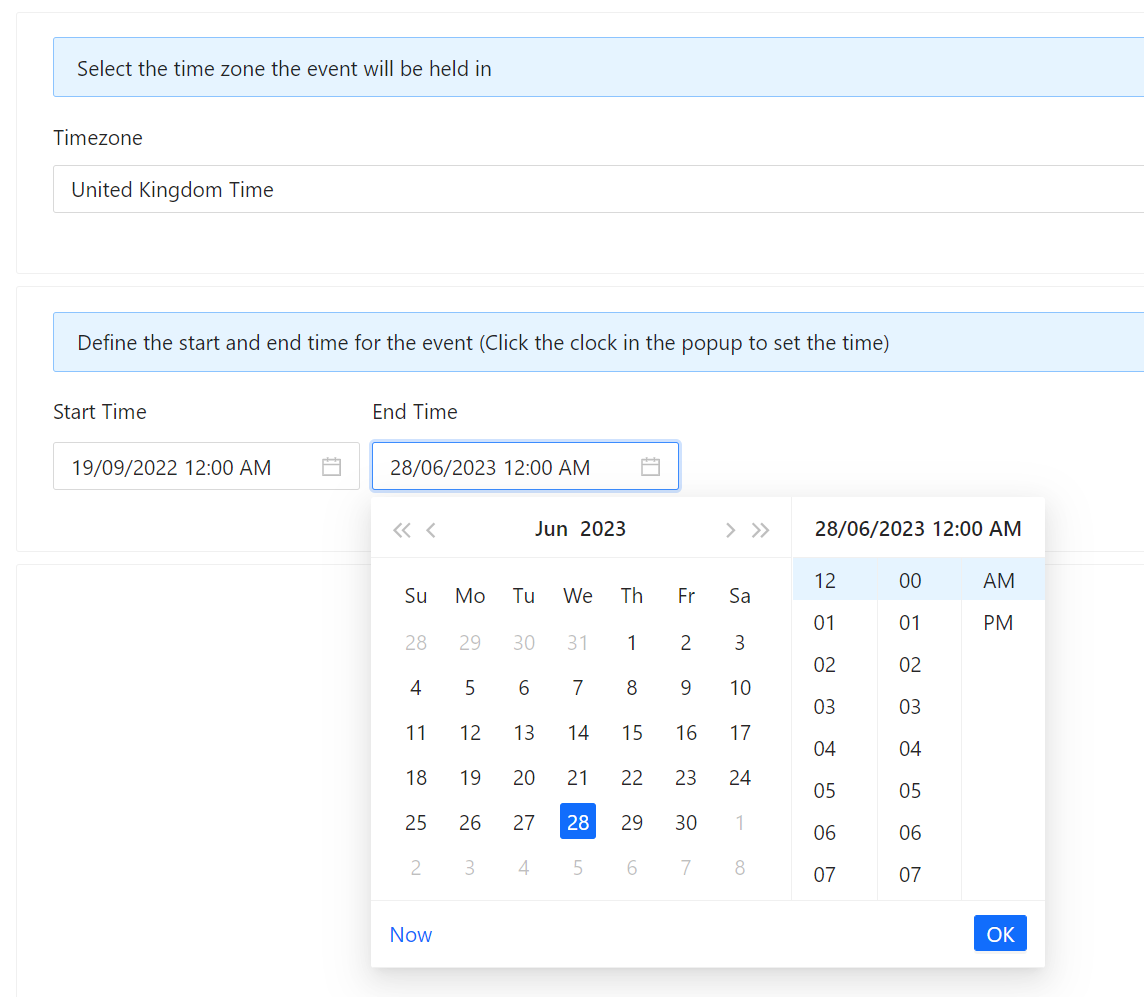
Click the input to select day and time
Live QA Moderators
To add a moderator to an app you must be a community moderator. Got to the admin center: Apps > Live QA > [Select App] > Moderators
Click the Add Moderator button and input the name and email address of the moderator to add them
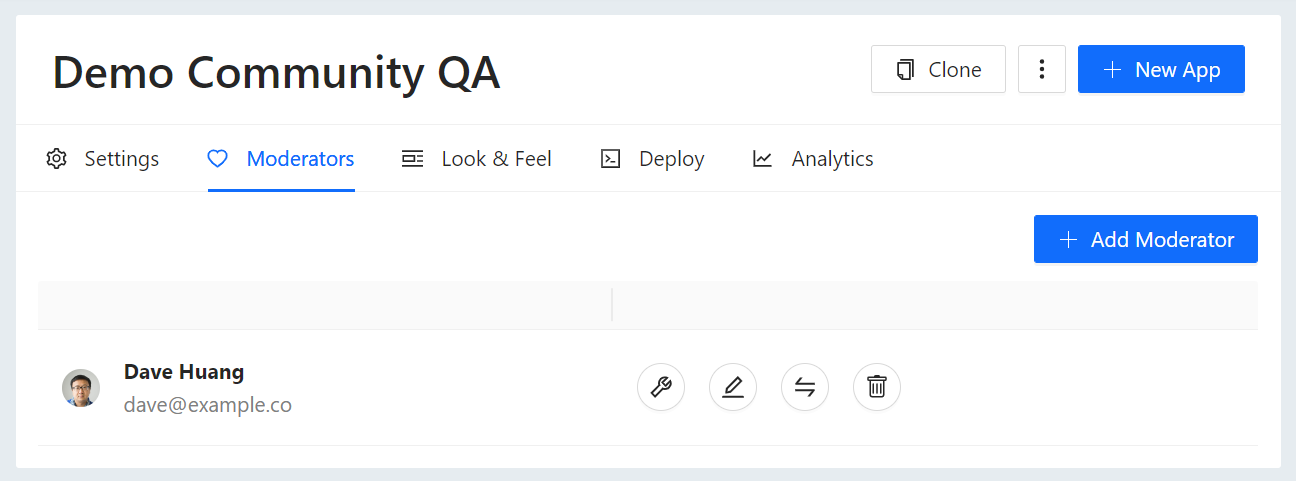
Adding a moderator to a Live QA event
Who should you add as a moderator? Anyone who will answer questions, assign questions, or will manage the event.
What is a VIP? You can mark a moderator as a VIP. This is for the purpose of distinguishing on the user interface between people who will answer questions and moderators who will manage questions (assign, etc)
Live QA Answering
This video covers how you answer questions from your live Q&A events on Pubble. Questions from the Live Q&A app that you add to your website will be pushed to the Moderators who are subscribed to the app.
Answering questions when you are not an App Moderator
Questions from a live Q&A event can be assigned to anyone on your Pubble team. You don't have to be an app moderator to answer questions. This video covers how to answer questions that are assigned to you. All you need to do is keep an eye on My Questions. Anything that is assigned to you will be included there.
Pushing Updates
Pubble supports pushing Updates from the dashboard to your live events (Live Q&A and Liveblog). This video covers how to push an update to your event.
Adding Questions
Normally you will leave it up to event participants to ask questions via the widget. However there may be times when you want to add prefabricated questions, or maybe a question was asked verbally to a presenter on stage by a member of the audience and you want to include that in the question stream.
You can add questions to an event via the dashboard by clicking on the Live QA app from the right-hand menu and then clicking the Incognito tab
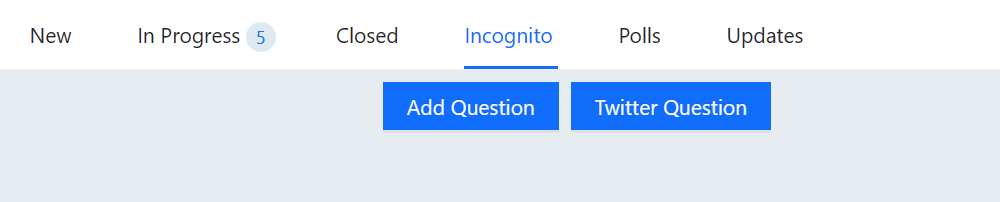
Click the Add Question button
The below modal will appear where you can add a question. Once submitted the question will appear in the question stream and appear to be submitted by a regular visitor. Contact details are optional, if left blank then the question author will be "Guest".
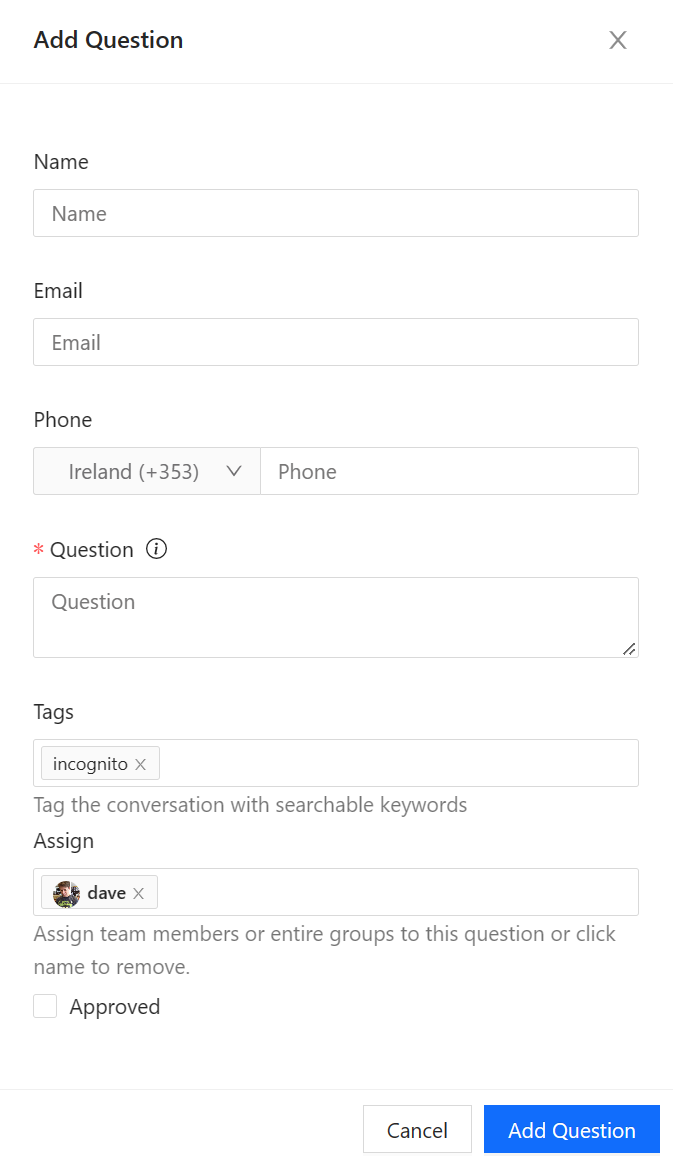
Complete the form and submit
Privacy (GDPR)
You can enable a consent checkbox on the Live QA app that a user must tick before they provide any contact details.
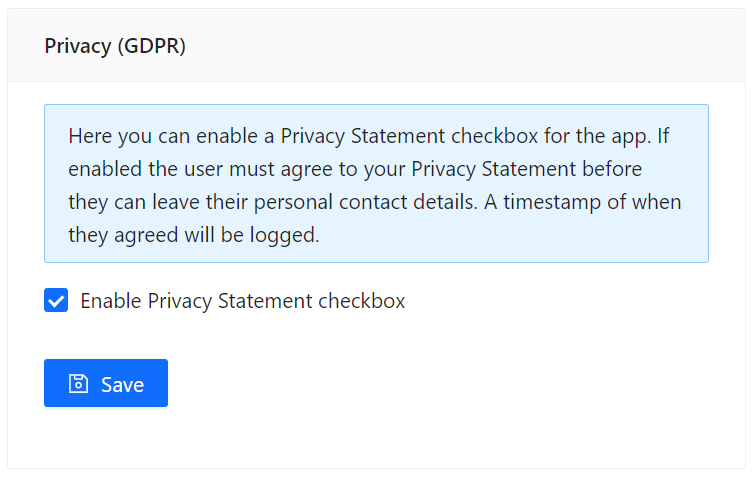
The privacy setting in the Admin Centre
Note: To enable this option you must first provide a Privacy Statement URL in the Privacy tab
Once enabled the following checkbox and Privacy Statement link will appear on the Live QA app where users submit contact details:

The consent checkbox on Live QA
Live QA Video
You can add a video to a Live QA. This is great if you have a video event and want to allow viewers to ask questions as they watch.
Currently supported videos are YouTube, Facebook and Vimeo
Note: if you use YouTube ensure playback on third party websites is enabled on your video
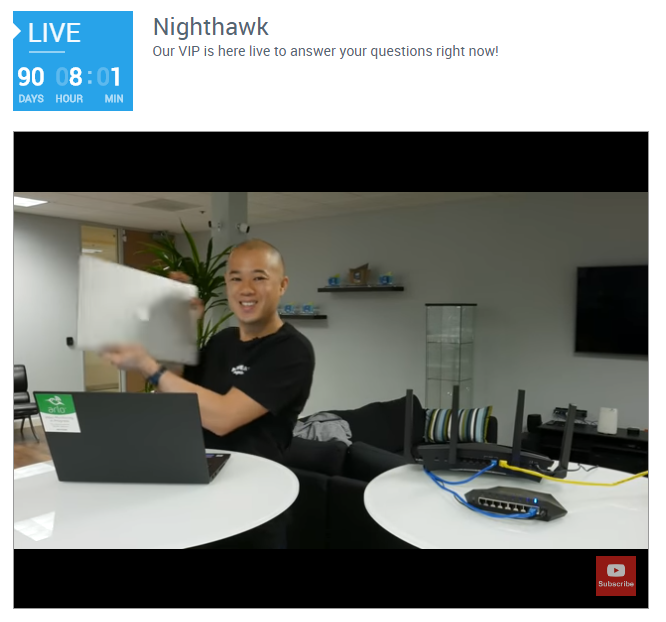
The video will appear of the top of the Live QA
To add a video go to the admin center: Apps > Live QA paste the video URL into the Video Options panel the and tick the Enable Video option
Presenter Mode
If your live event host is on a stage answering questions verbally then the questions can be presented in Presenter Mode, which can be read from a screen in front of the presenter or projected onto a large screen for an audience.
You can access Presenter Mode via the dashboard by clicking on the Live QA app from the right-hand menu and then clicking the Presenter Mode icon

Click the Presenter Mode icon (screen with 'P') to access
To be able to view the event in Presenter Mode you must be logged into Pubble and be a member of the community the app belongs to. When hosting this kind of event it is generally recommended that a moderator assign questions to the presenter, therefore the presenter needs to be logged in on Presenter Mode where they will view the questions assigned to them.
The Presenter Mode displays each question in a large tile making it easier to read and there are several options for altering the display to suit the screen, such as increasing font size.
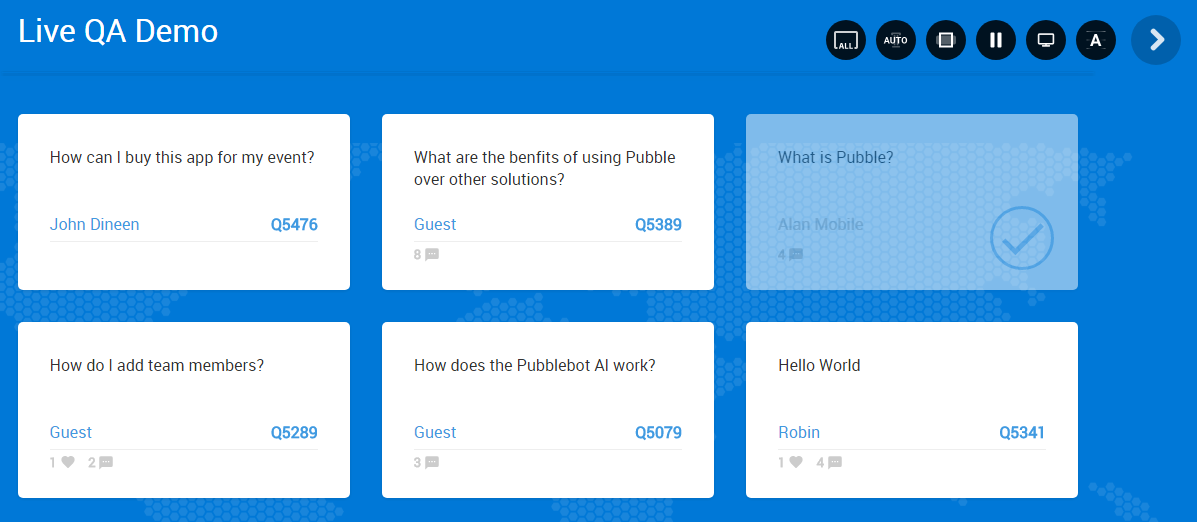
Default view in Presenter Mode
To access the options click on the spanner icon in the top-right:

Presenter Mode options
From left to right the options are as follows:
Stream: here you can choose what questions are displayed, you can either show all questions or only questions assigned to you (default)
Columns: here you can specify how many columns are displayed from three (default) to five
Width: control the width of the columns on the page
Play/Pause: this determines whether questions are automatically displayed or are lazily loaded. If the questions are lazily loaded you have to manually click to load in new questions
Screen: here you can select the screen type, 'monitor', 'TV' or 'projector'.
Font: here you can select the font size
It is highly recommended that you determine the correct display settings suitable for the device before the event starts.
Clicking on any tile will expand it. This is good for highlighting any question the presenter is currently answering.
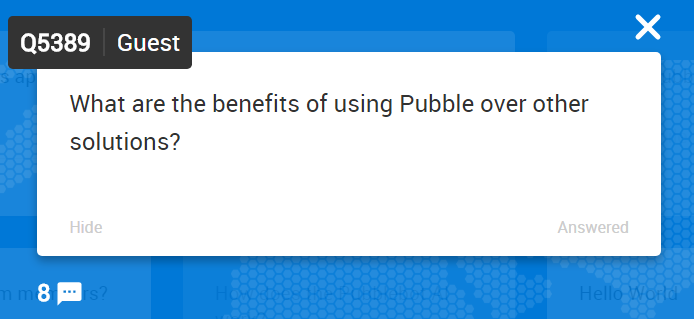
Expanded question tile
There are two options on the question tile: Hide and Answered
Hiding a question will remove it from the stream. This is useful to dismiss any unwanted questions from the presenter. Hidden questions will be marked as closed in the dashboard
Marking a question as answered the question will remain on the page however the tile will be clearly marked and dimmed so the presenter will know not to return to that question.
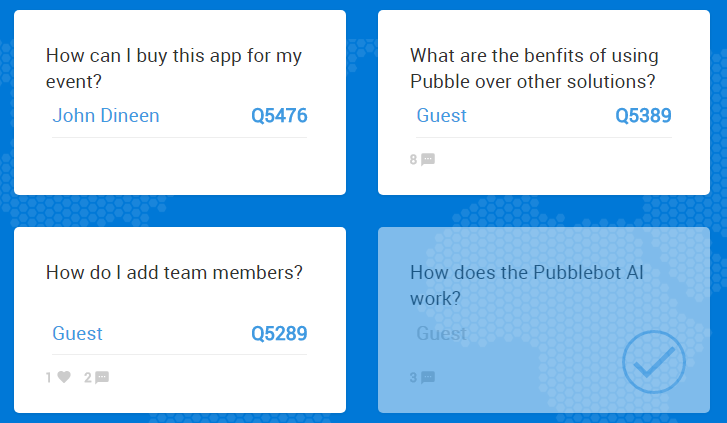
Question marked as answered (dimmed)
The tile also displays the number of comments a question has, however these are not viewable in Presenter Mode and is only present to give a sense of how much activity a question has generated. Comments can be viewed either from the dashboard or from the page where the widget is hosted.