

Select the Page Settings for the selected page on the Facebook Business Portal
Integrations
With the Pubble Facebook integration you will be able connect your business Facebook Pages with Pubble. Any conversations started on your Facebook Page will be synced in Pubble and you can reply to Facebook conversations from the Pubble dashboard.
Connecting with Facebook is a simple few-clicks process which can be started in the admin center: Community > Integrations > Facebook
Note: we will not post messages on your public Facebook Pages.
With the Pubble Instagram integration you will be able connect your Professional Instagram accounts with Pubble. Any private conversations sent to your Professional Instagram account will be synced in Pubble and you can reply to Instagram conversations from the Pubble dashboard.
Connecting with Instagram will require you to have a professional Instagram account which is connected to a Business Facebook Page
To connect a Professional Instagram acount to your Facebook Page, first go to the Facebook Business Portal and select All Tools > Page Settings from the left-hand menu.
This will take you to the Page settings where you should click Linked Accounts from the left-hand menu
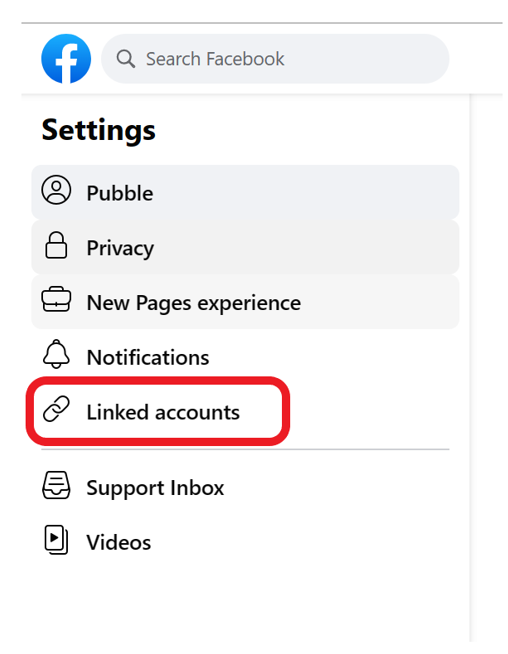
Select Linked Accounts from the Page settings menu
From there select Instagram from the left-hand menu, and click the Continue button so start the process of linking the Instagram account to the Facebook Page
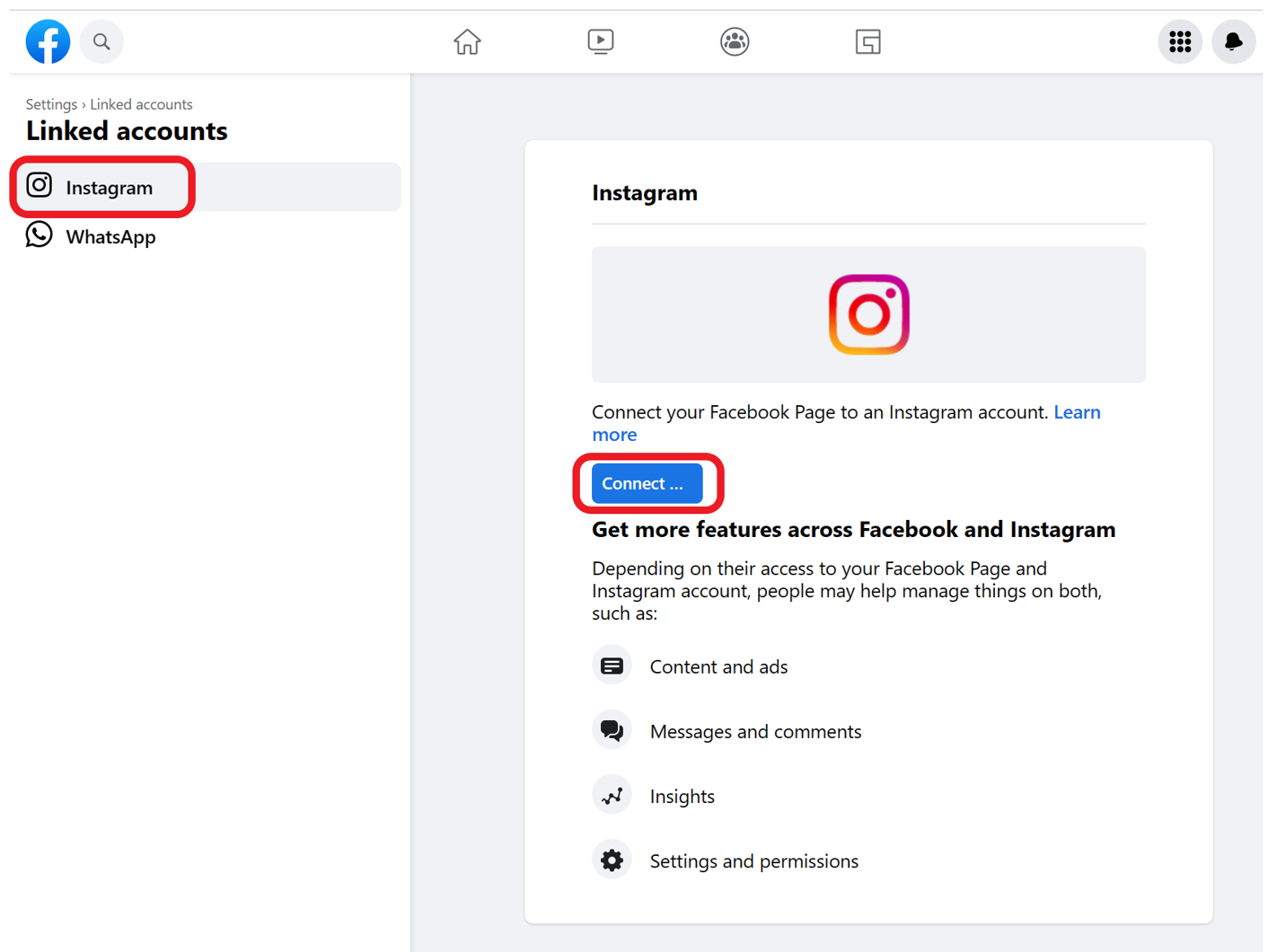
Link Instagram to your Facebook Page
Once you have a linked Instagram account on your Facebook Page, you can then add the integration on Pubble go to admin center: Community > Integrations > Instagram
You will be directed to Facebook where you will be asked which Instagram Business Accounts you want to use with Pubble
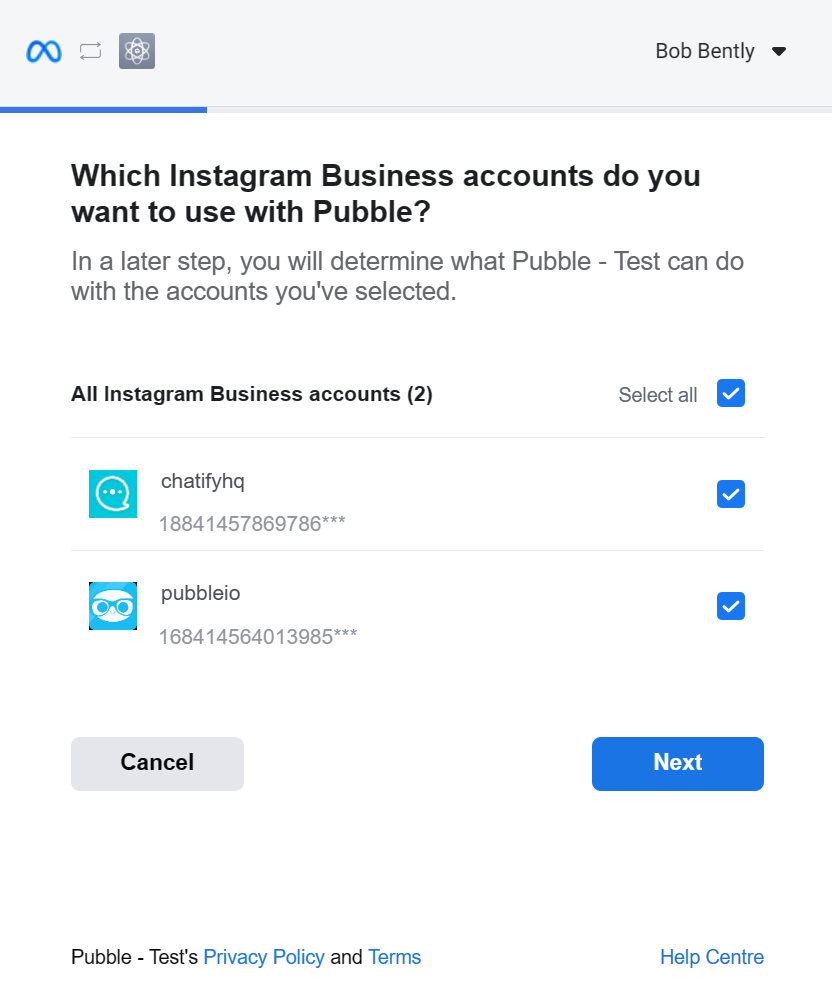
Select the Instagram accounts to integrate with Pubble
If you have multiple Facebook Pages with connected Instagram acounts, you will be asked to select the Instagram acounts you want to integrate with Pubble
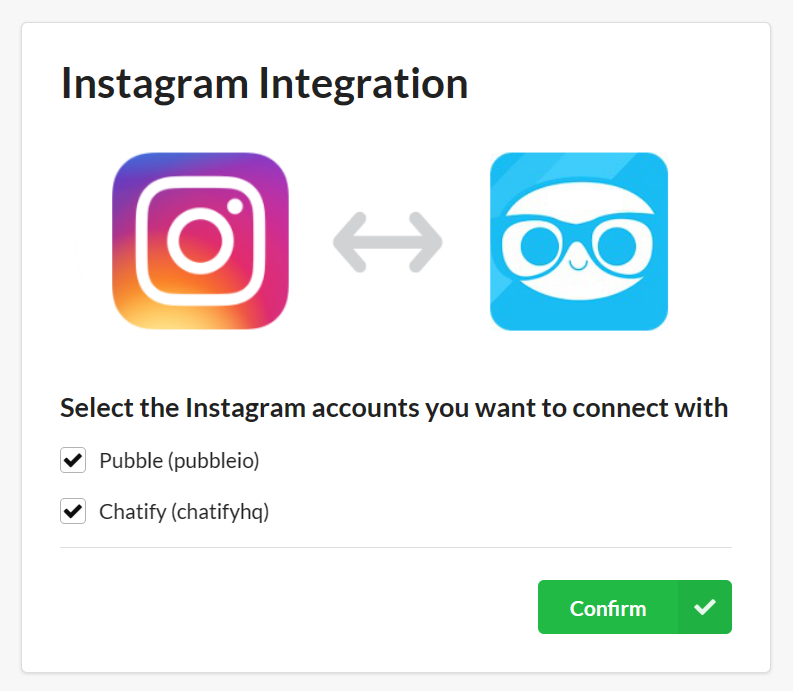
Select the Instagram accounts to integrate with Pubble
Click Confirm to add the integration.
Note: we will not post messages on your public Instagram acounts.
Slack
Our integration for Slack will send notifications of any new questions asked on the Pubble Live Chat widget to a specified channel on Slack, this way Slack users can always keep on top of any new questions asked on your website.
Connecting with Slack is a simple few-clicks process which can be started in the admin center: Community > Integrations > Slack
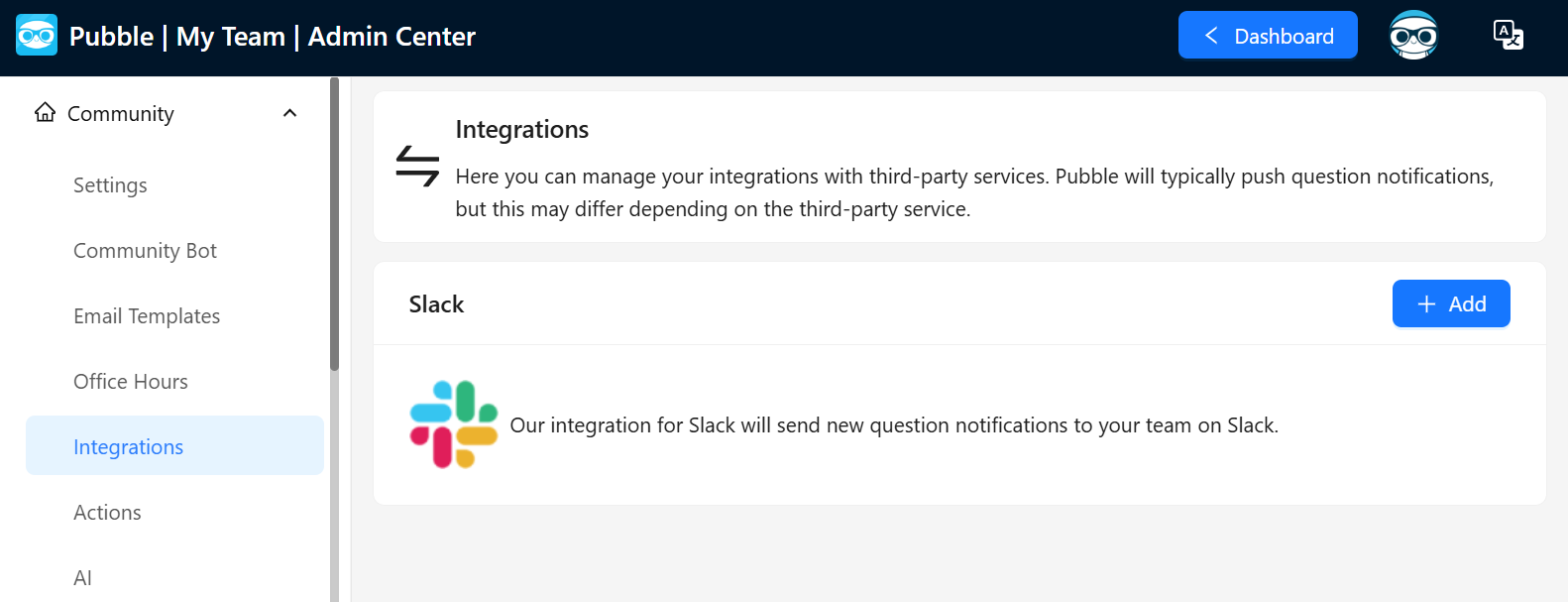
Navigate to the integrations section and click Add.
The Click on "Add+" button for the Slack integration.
will open the integration page for your Slack team.
If you have multiple Slack teams, make sure that you select the correct one.
Choose the channel that you want the questions from Pubble to get pushed into.
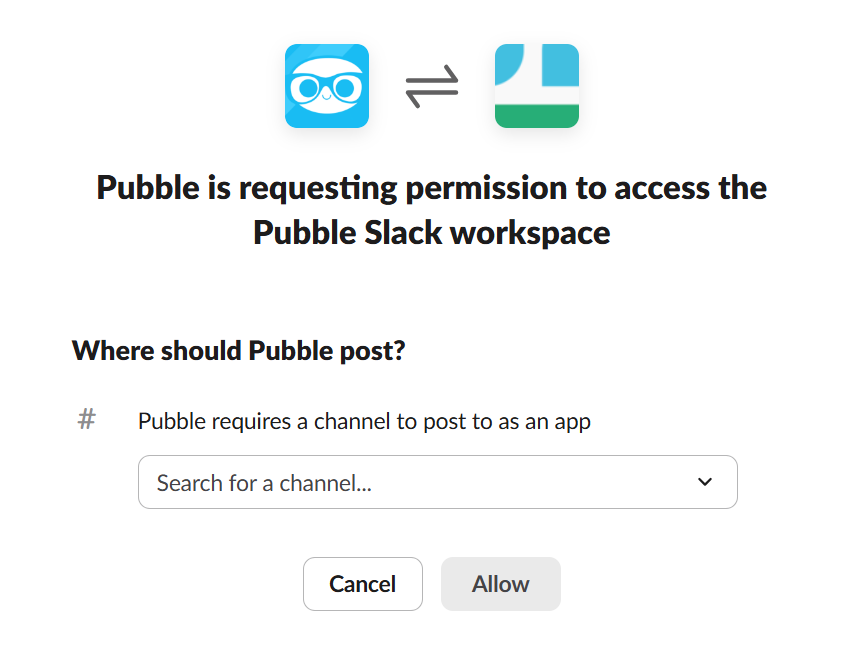
Confirm which channel on Slack to push notifications to
Click Authorise.
You will be returned to Pubble with a final screen confirms that the integration with Slack has been successful.
To test that all is working correctly, ask a question using the Live Chat widget on your website. The question will get pushed into the Slack channel that you configured:
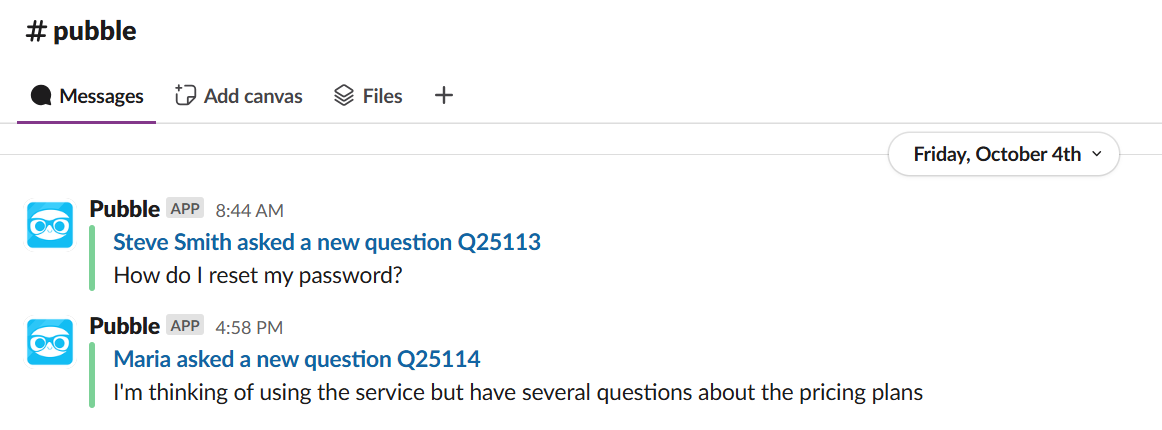
Notifications sent to your selected Slack Channel
To learn more about how Pubble manages and stores third-party data please review our Subscriber Agreement, Privacy Statement and GDPR overview
Teamwork Desk
Our Teamwork Desk integration will enable you to push questions asked on Live Chat, Community QA and Live QA as Tickets on your Teamwork Desk product.
To add a Teamwork Desk integration go the admin center Community > Integrations > Teamwork
You will need your Desk API key and your Teamwork Desk subdomain. The subdomain is the unique name of your team which you use in your Teamwork Desk URL: https://[subdomain].teamwork.com/desk
Note: you will need to use the Desk API of an administrator account on Teamwork Desk.
You can obtain your Desk API key from your profile on Teamwork Desk, accessible via the top-right option and clicking View Profile > API Keys
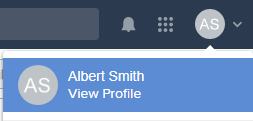
Access your API key via this menu
Or via the following URL (replacing the subdomain with your own)
https://[subdomain].teamwork.com/desk/#myprofile/apikeys
Once you have entered your API key and subdomain there are several options setting up the integration:
Add Teamwork Desk agents to Pubble: add existing agents to your Pubble community. Any agents already in Pubble will not be listed.
Auto-add agents to Pubble: any new agents subsequently added to Teamwork Desk will be added to Pubble
Auto-add customers to Pubble: any new customers subsequently added to Teamwork Desk will be added to the contacts table in Pubble
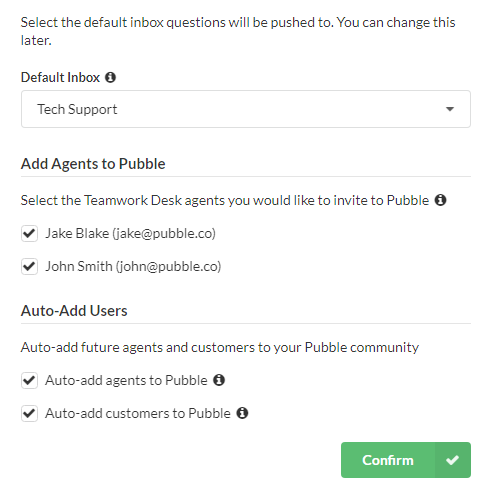
Options when adding Teamwork Desk
Once you have successfully integrated with Teamwork Desk you will see the option to push a Pubble question into Teamwork Desk in the dashboard:
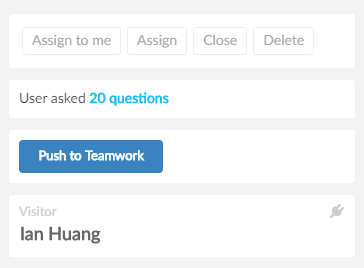
The button to push a question to Teamwork Desk
Note: you can only push questions where the question author has supplied an email address
Before confirming to push to Teamwork Desk, you will need to select which Teamwork Desk agent the question will be assigned to and also which inbox it will be added to:
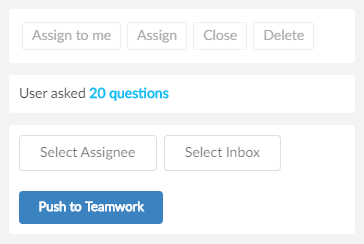
Teamwork Desk options
Once the question is pushed to Teamwork Desk, a transcript of the conversation will be added as a Ticket. Any subsequent replies will also be sent to the ticket. Additionally, any replies made from Teamwork Desk will also be pushed back into the conversation on Pubble keeping the conversation/ticket synchronized between the two systems.
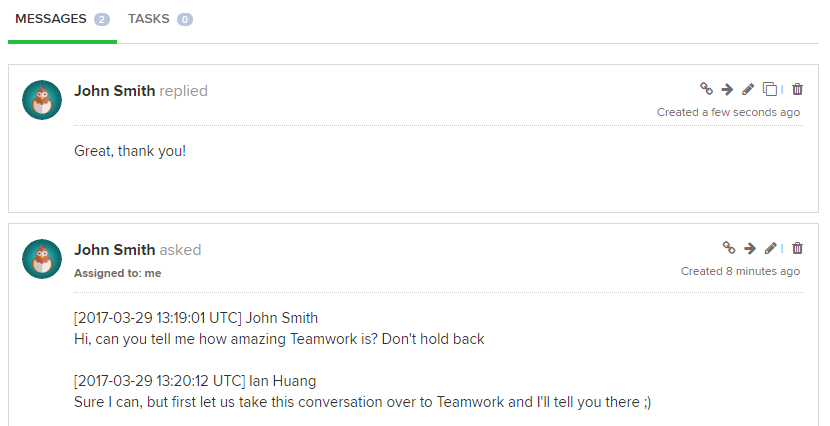
Teamwork Desk Ticket, pushed from Pubble
Replies to a question on the Pubble dashboard will only be added to Teamwork Desk if that Pubble team member is also an agent on Teamwork Desk with the same email address. Therefore it is advised that your Pubble team members should also be members on Teamwork Desk.
To make this easier you should select to auto-add agents as detailed above. After connecting with Teamwork Desk any new agents you add on Teamwork Desk will also be added as a team member on Pubble. The user will receive an email from Pubble inviting them to activate their account on Pubble.
Help Scout
Our Help Scout integration will enable you to push questions asked on Live Chat, Community QA and Live QA as Tickets on your Help Scout product.
To add a Help Scout integration you must first create a custom app on your Help Scout profile. To do so follow the steps below:
On your Help Scout dashboard click the profile icon in the top-right and select "Your Profile" from the menu
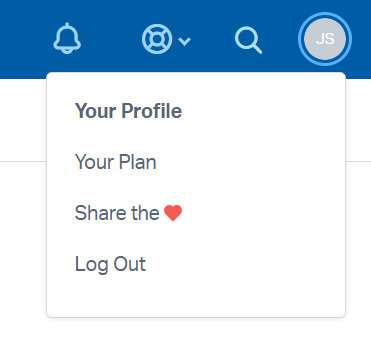
Go to Your Profile
From the right hand menu select "My Apps" and click the "Create My App" button
Give your app a name such as "Pubble App"
Then enter the Redirection URL. This must follow the pattern: https://[myteam].pubble.io/integration/helpscout/auth
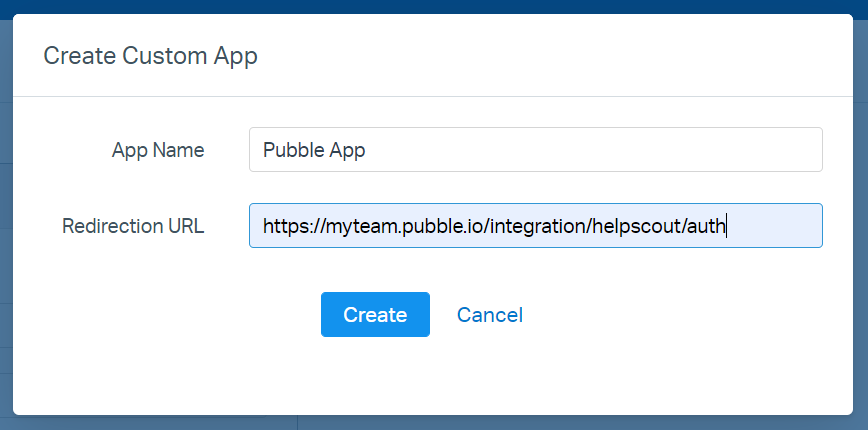
Creating your custom app
Once your app is created an App ID and App Secret will be generated. You will need these shortly.
With the custom app on Help Scout created, revisit the admin center on Pubble and go to Community > Integrations
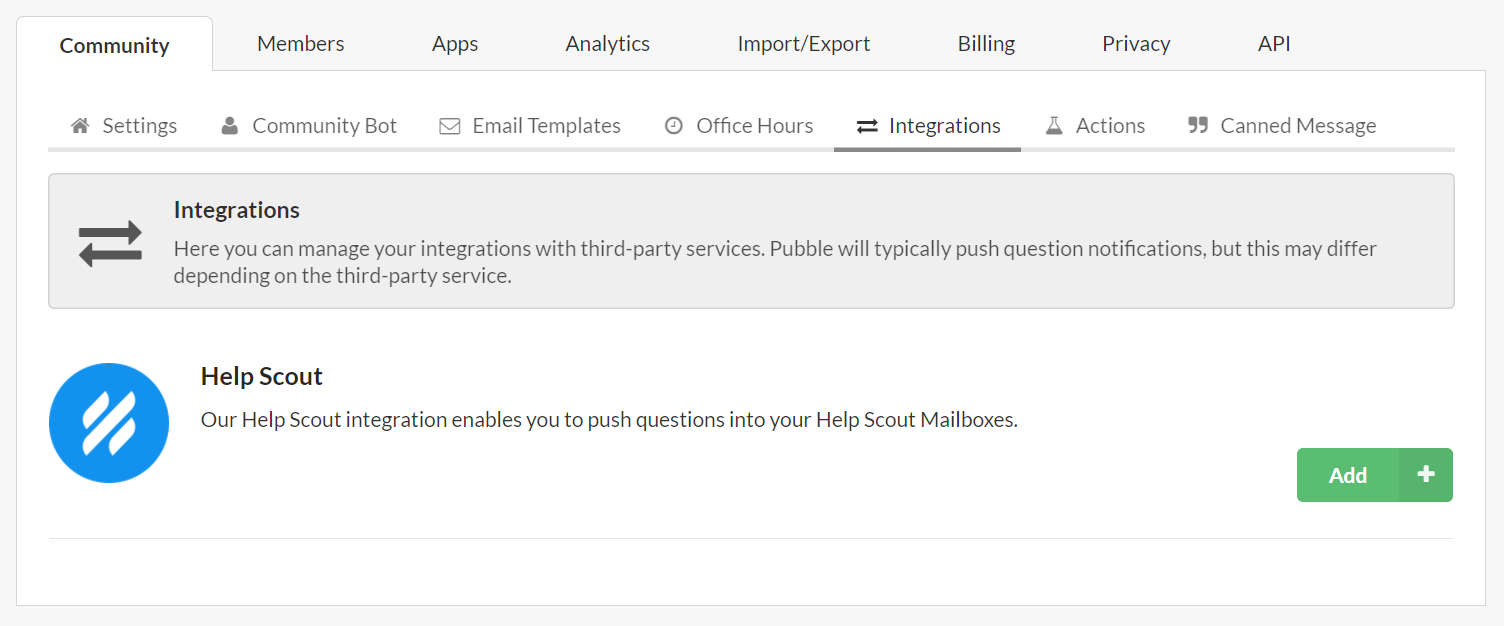
Adding a Help Scout integration
From here click the "Add" button. You will then be asked to input the App ID and App Secret from your custom Help Scout app. Once that is done click "Next" and the integration will be added
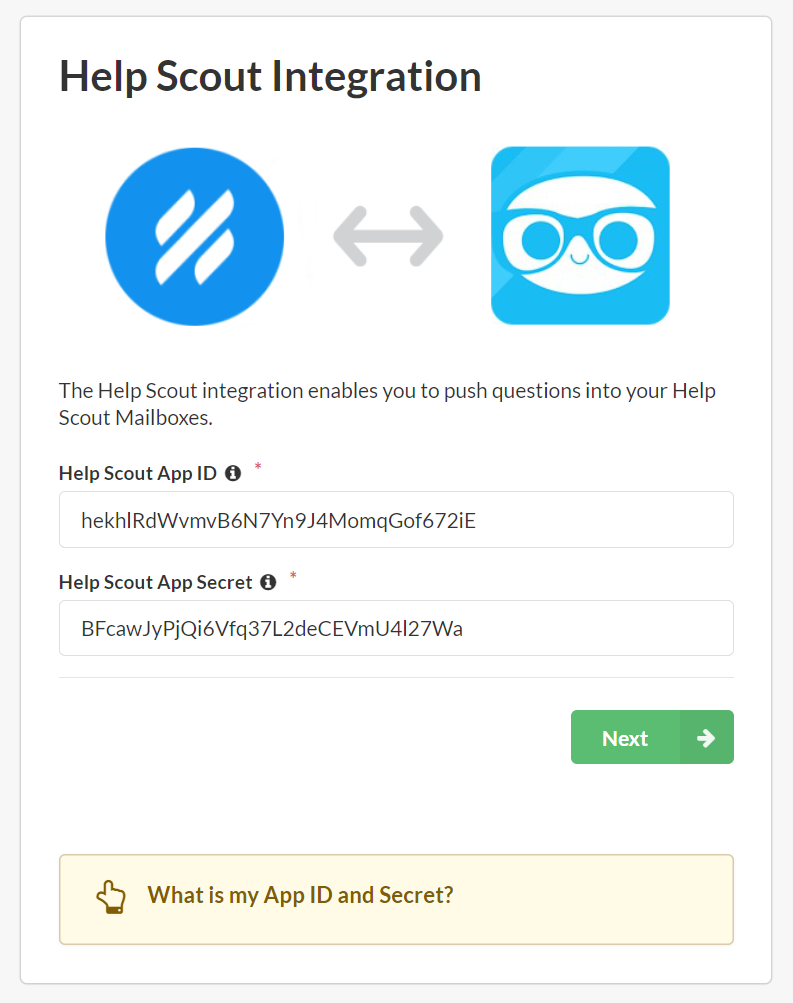
Entering the app details
With the integration now added you will be able to push any question where the user has provided an email address to your Help Scout mailboxes.
To do this open a conversation and on the right-hand panel you will see an option to push the conversation to Help Scout
Here you will also be able to select a mailbox to push to the conversation to
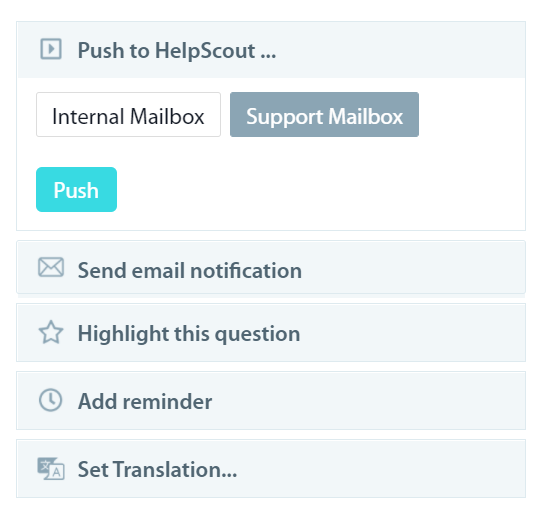
Sending a conversation to Help Scout
Pushing a conversation to Help Scout will send a transcript of the conversation up until that point as the first post in Help Scout. From this point on the conversations will be synchronized with any subsequent replies from Help Scout will be pushed back into the conversation on Pubble and any replies on Pubble will be appended to the conversation on Help Scout
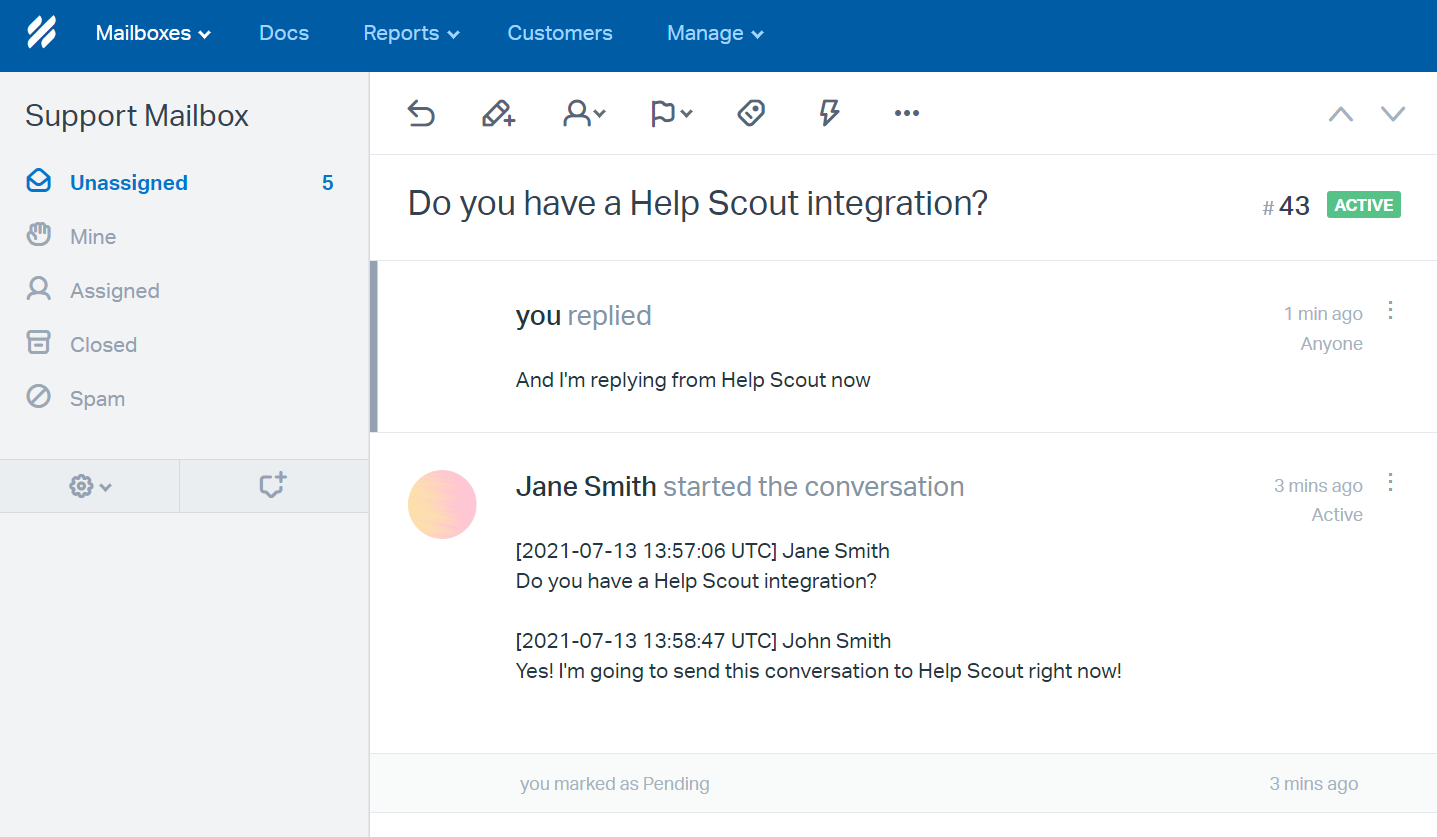
The conversation in Help Scout