Allow posts before/after event
Allow visitors to post messages before and after the scheduled time
The Pubble Live Blog app enables you post messages in real-time to your website. For a complete overview visit our Liveblog Product page
This page details the technical set-up of a Live Blog. To learn more about running an event, please see our Live Event guidelines
You can schedule a time for your event to take place, you can also control whether visitors are able to post messages before and after the event, or only during the event.
To set a schedule go to the admin center: Apps > Live Blog select the Live Blog from the left menu and then select Schedule
Here you have several options available:
The Live Blog can be be displayed on your page in two ways:
The app will be displayed as a thread on the page where you place the code inside your html
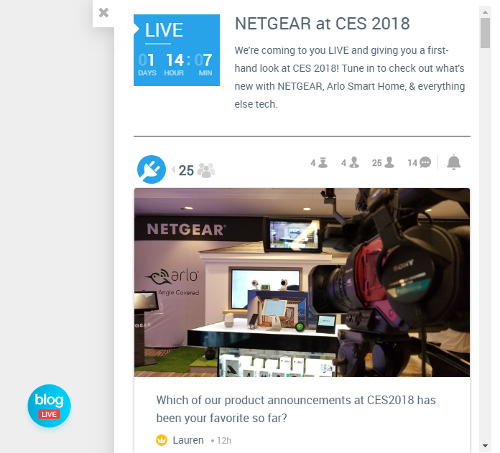
A clickable sidebar will be displayed on the page which will invoke a drawer containing the app to slide into the page
By default the on-page threaded layout will be displayed. To deploy with a sidebar, see below.
To deploy a Live Blog widget on your website you will need to have access to your CMS or HTML files. The Live Chat widget is added by copying a Javascript code snippet into the body element of your HTML.
To get the code snippet, go the admin center and go to: Apps > Live Blog select an app from the menu and click Deploy
Here you can select whether you want to display the app on-page or from a sidebar drawer. Make sur you select the display mode before copying the code as the selection will alter code slightly.
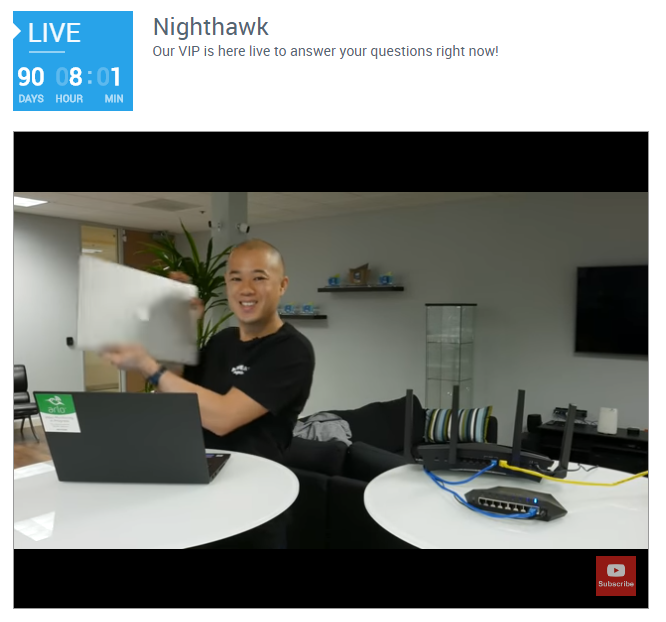
You can add a video to a Liveblog. This is great if you have a video event and want to provide text updates and Tweets to viewers as they watch.
Currently supported videos are YouTube, Facebook and Vimeo
To add a video go to the admin center: Apps > Live Blog paste the video URL into the Video Options panel the and tick the Enable Video option