
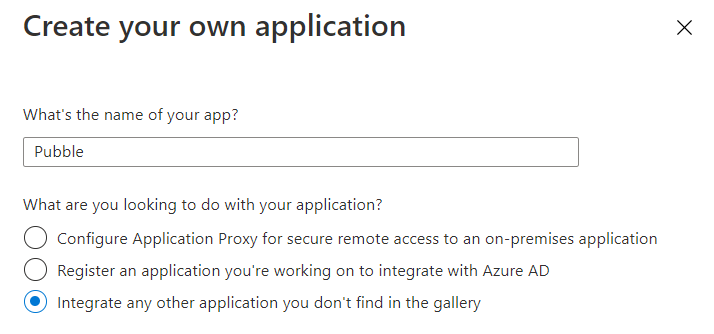
Creating your own application
Microsoft Entra SAML SSO
The Pubble-Microsoft Entra integration allows organisations to securely onboard team members to the Pubble system using their company credentials. Utilising Microsoft Entra SSO, team members can be automatically and securely logged into the Pubble dashboard, removing the need for them to re-authenticate.
Prerequisites
Pubble community admin
Access to Azure Portal
Configuring Microsoft Entra with a custom app
In the Azure Portal search for "Enterprise Applications" in the search bar and click the result
In the left-hand menu select "All applications"
In the applications directory click "New application"
In the following Browse Microsoft Entra Gallery page, click "Create your own application"
You will see the following form:
Enter "Pubble" or similar for a name and select the option to "Integrate any other application you don't find in the gallery"
Once created the new app will appear in the application directory. Click the new Pubble app to enter its configuration
Select the option to set up single sign on
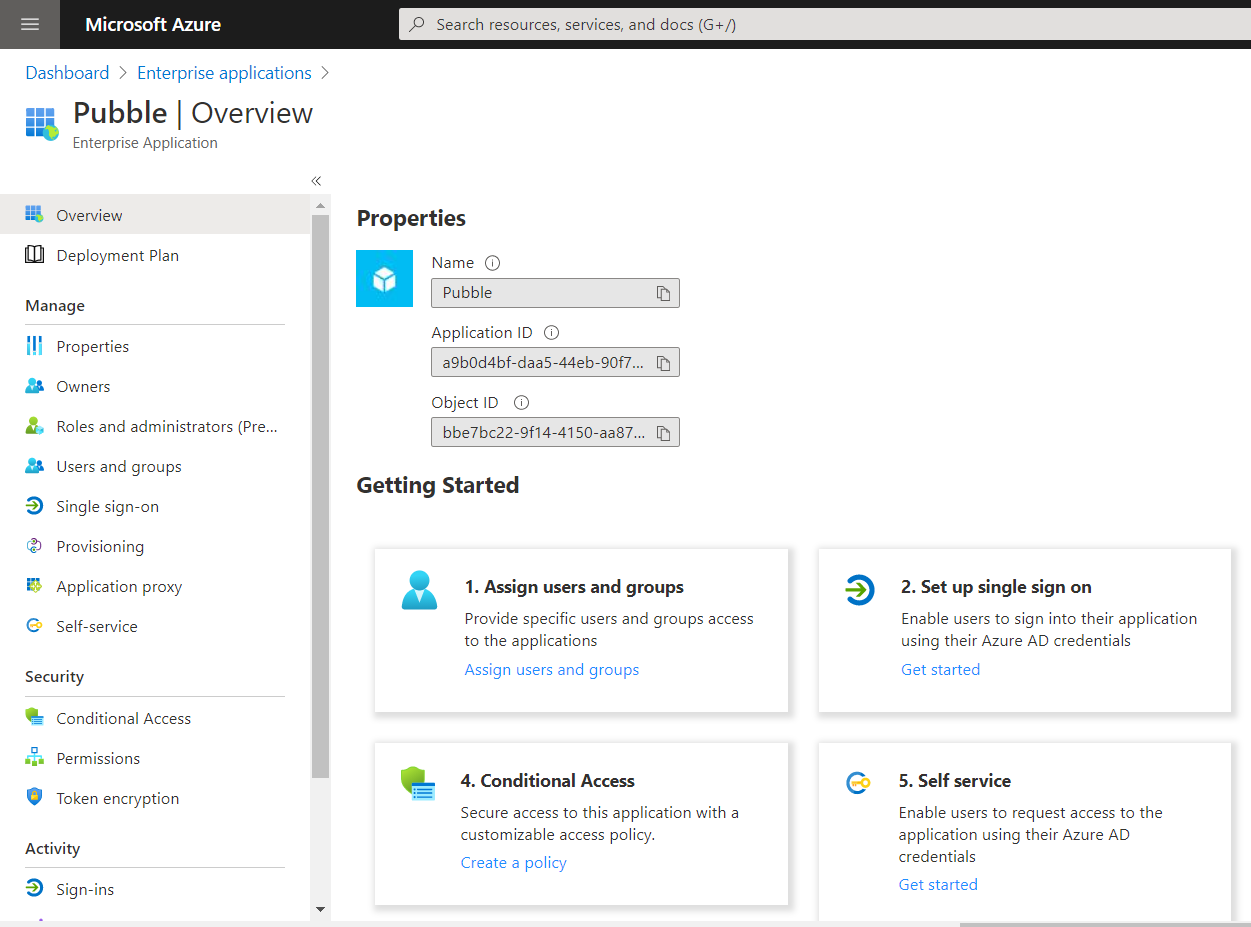
Option to set up single sign-on
Select SAML as the single sign-on option
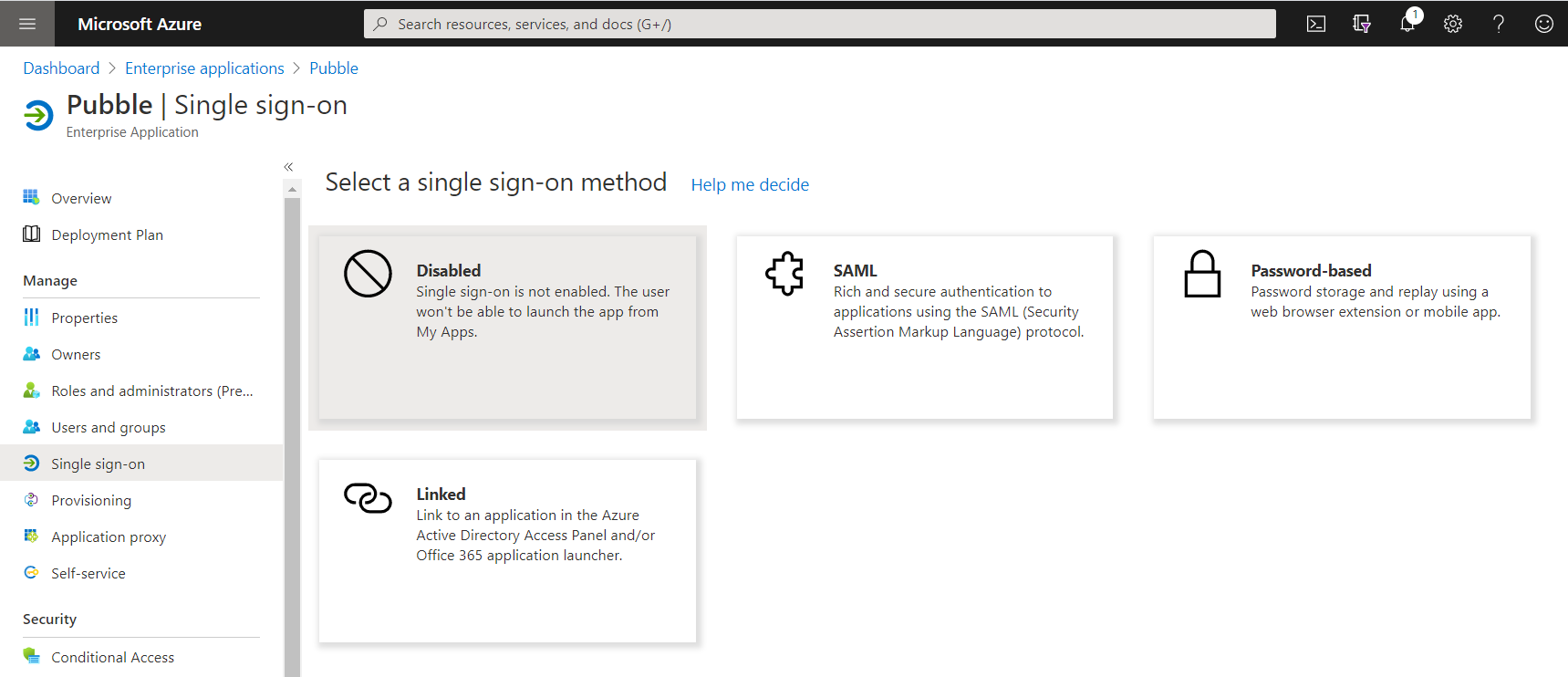
Select SAML
Select the "Basic SAML Configuration"
For the "Identifier (Entity ID)" option enter the full url for your Pubble community and make sure it is ticked as default, for example https://[myteam].pubble.io
For the "Reply URL" enter the following, replacing "myteam" with your Pubble community subdomain: https://[myteam].pubble.io/integration/azuread/signin
For the "Sign on URL" enter the following, replacing "myteam" with your Pubble community subdomain: https://[myteam].pubble.io/integration/azuread/sp/signin
For the "Logout Url" enter the following, replacing "myteam" with your Pubble community subdomain: https://[myteam].pubble.io/integration/azuread/sp/signout
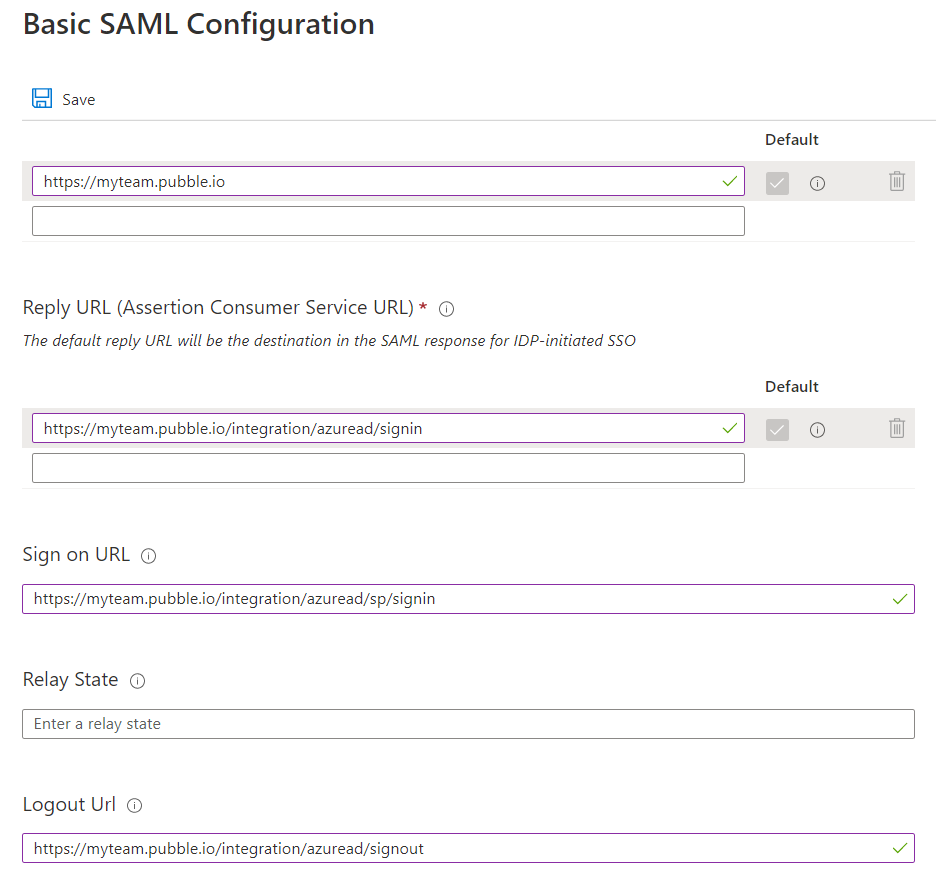
Basic configuration
In the "User Attributes & Claims" configuration enter the following
| Name | Namespace | Source | Source attribute |
|---|---|---|---|
| emailaddress | http://schemas.xmlsoap.org/ws/2005/05/identity/claims | Attribute | user.mail |
| displayname | http://schemas.microsoft.com/identity/claims | Attribute | user.displayname |
| jobtitle | http://schemas.xmlsoap.org/ws/2005/05/identity/claims | Attribute | user.jobtitle |
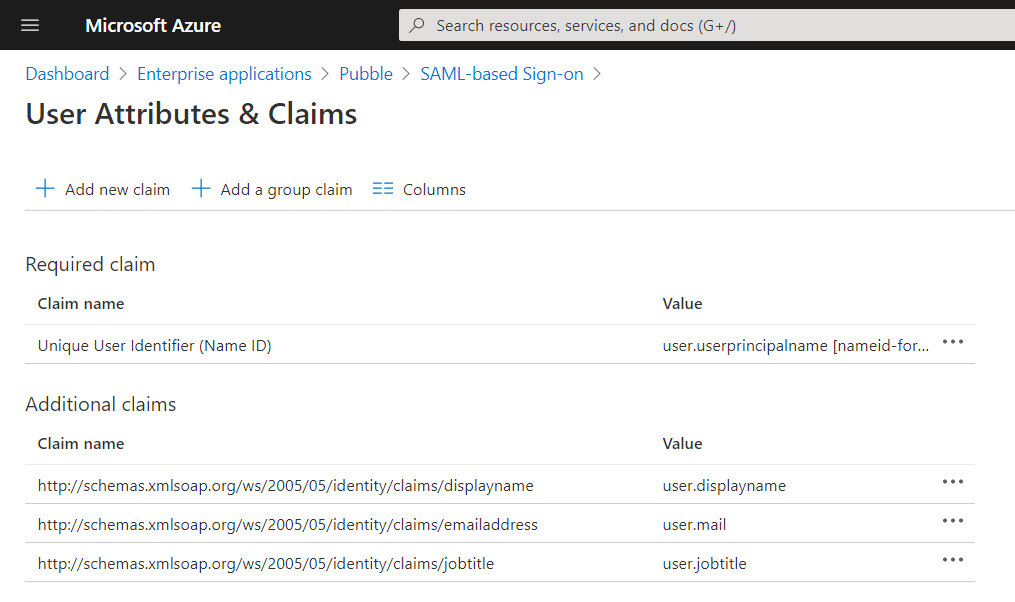
User attribute configuration
Once you have configured the above settings, download the "Federation Metadata XML" from the "SAML Signing Certificate" section. You will need this file when you add the Microsoft Entra on Pubble.
Next go to your Pubble admin center in a new tab and navigate to Community > Integrations
Where Microsoft Entra is listed click "Add"
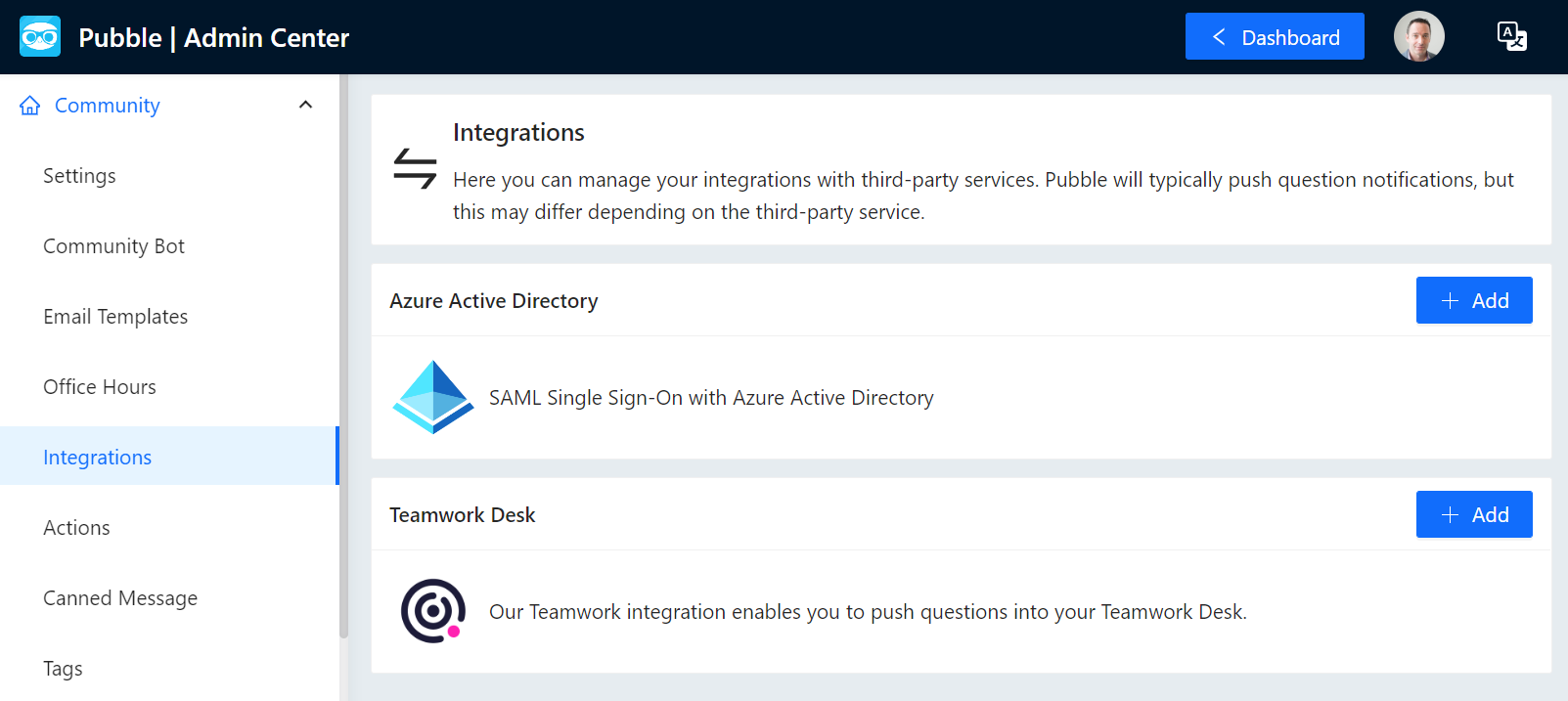
Select the Microsoft Entra module
In the next page paste the Federation Metadata XML into the form. Also enter the "Identifier (Entity ID)" which you configured in the app. You can also select the following options:
Whether your users can only sign in using Microsoft Entra
Enable Just-in-Time provisioning
Just-in-Time provisioning means user accounts are created the first time users try to log in via Microsoft Entra SSO, if they do not already have an account.
Click "Next". This will complete the set up on Pubble
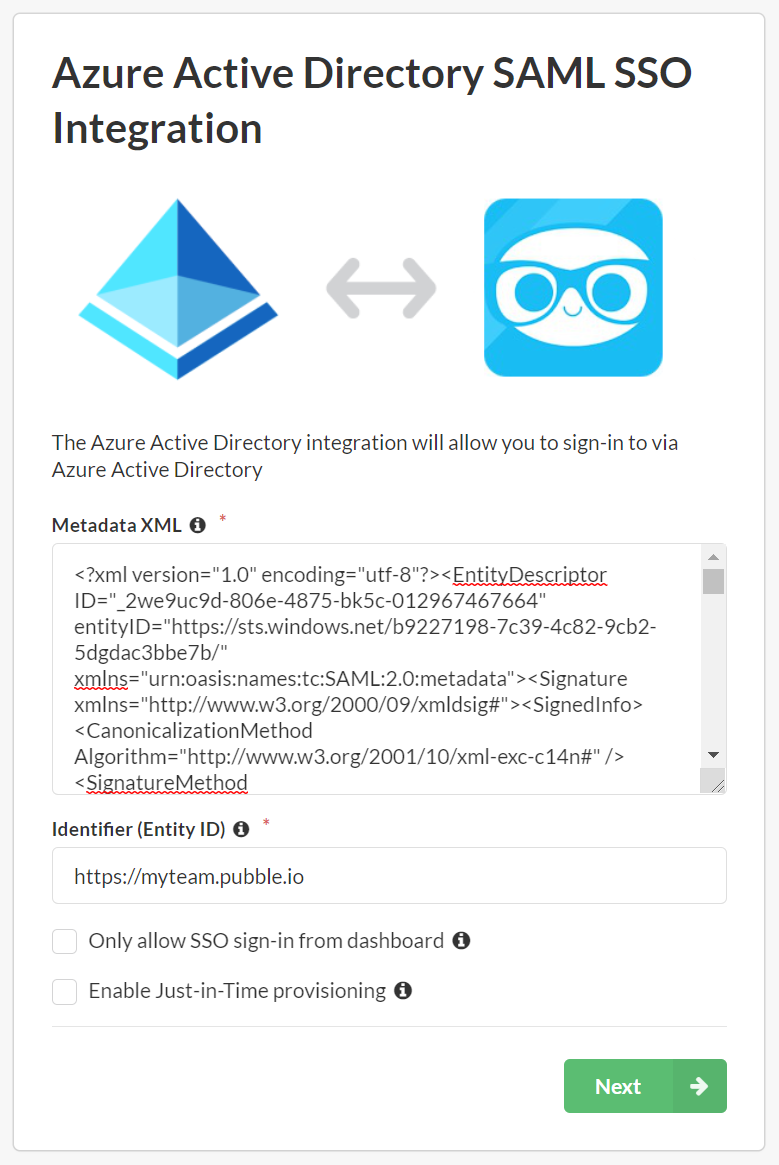
Paste the SAML metadata
The set up is now complete. You should be able to sign into Pubble from the chiclet in your Azure Apps dashboard, or from your Pubble team dashboard
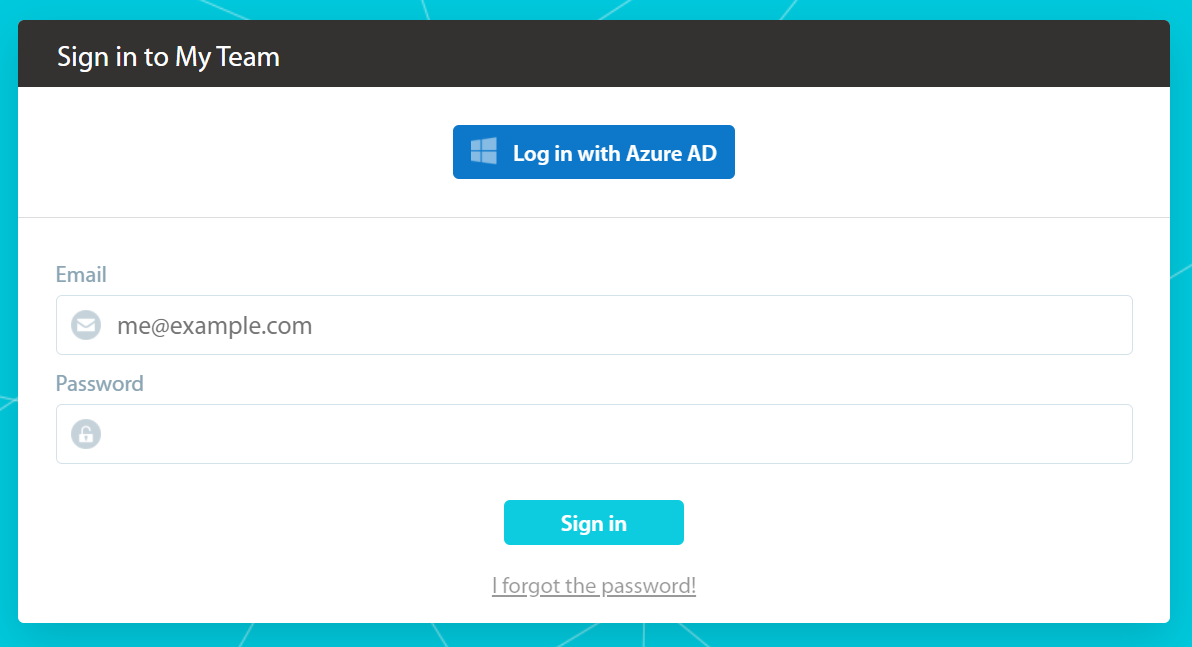
Pubble sign in with the Microsoft Entra option
Managing Users
There are several things to consider when managing users on Pubble with Microsoft Entra SSO enabled, especially if you only allow users to sign in via Microsoft Entra.
Firstly, the users that require access need to be added managed on Microsoft Entra with permission on the Enterprise application, otherwise even if the user has an account on Pubble, they would not be able to sign in via Microsoft Entra
If you invite a user to Pubble via the Pubble Admin Center, then you may want to first consider updating the invite email template, by replacing the default confirm link with the Microsoft Entra sign in url which takes the following format: https://[myteam].pubble.io/integration/azuread/sp/signin
Finally, the Microsoft Entra SSO grants users access to the Pubble however users still need to be added to the apps they will moderate. Therefore there is user management on both Microsoft Entra and on Pubble