
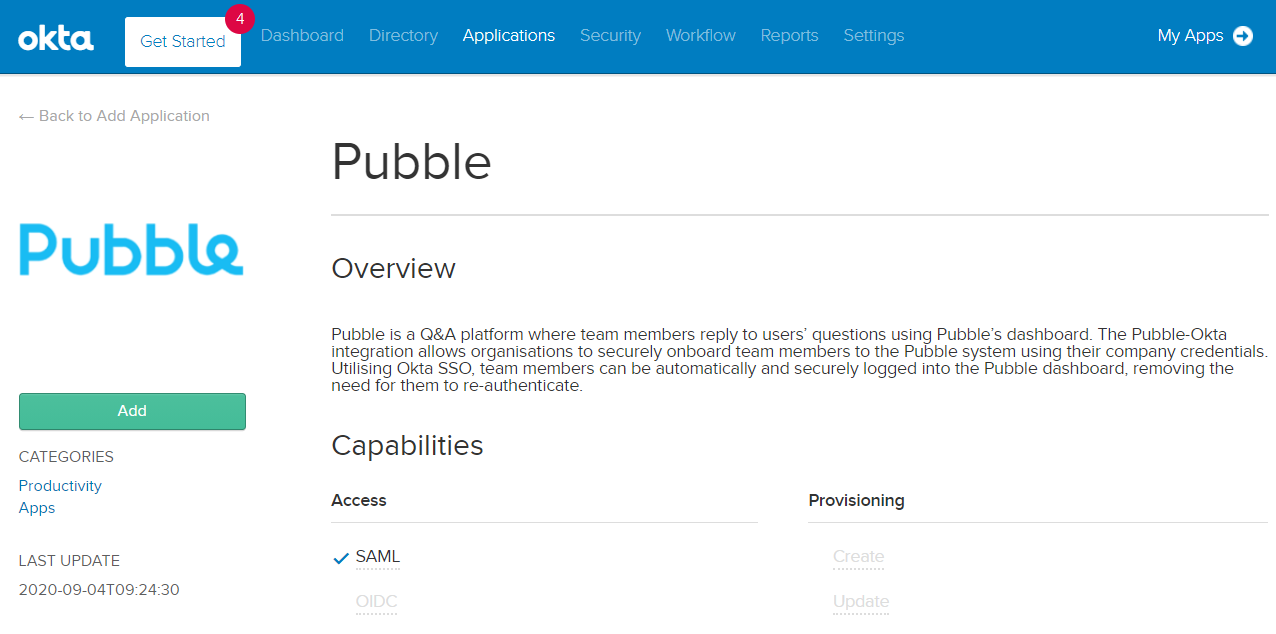
Pre-configured Pubble Integration
Okta SAML SSO
The Pubble-Okta integration allows organisations to securely onboard team members to the Pubble system using their company credentials. Utilising Okta SSO, team members can be automatically and securely logged into the Pubble dashboard, removing the need for them to re-authenticate.
If your organisation uses Okta as an Identity Provider, simply search for Pubble in the Okta Integration Network and click to add
Prerequisites
Pubble community admin
Okta admin privileges
Configuring Okta from the OIN
In the Okta admin panel go to "Applications" in the menu and then click "Add Application"
Search for "Pubble" and will see the Pubble integration in the drop-down list
Click it to to view the Pubble pre-configured integration app and then click the "Add" button
In the next page you need to enter your Pubble subdomain and then click "Done"
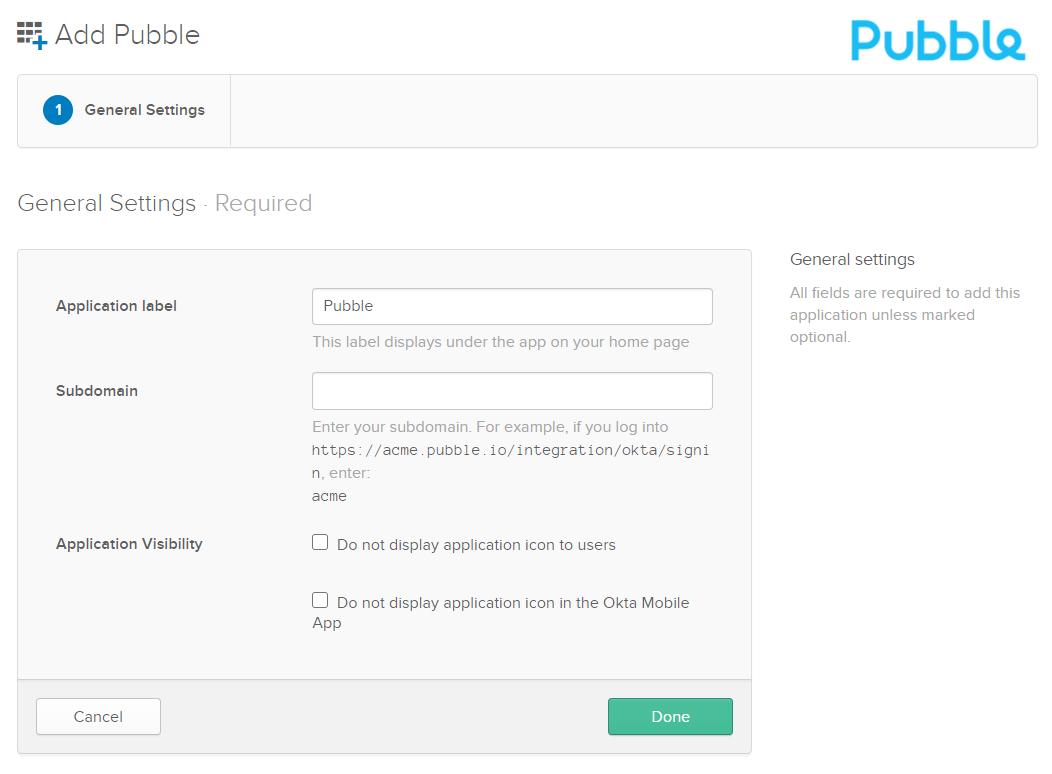
Enter your Pubble subdomain
The next step is to configure the metadata on Pubble
Click on the "Sign On" tab of the Pubble app and then click "View Setup Instructions", where you can copy the metadata XML
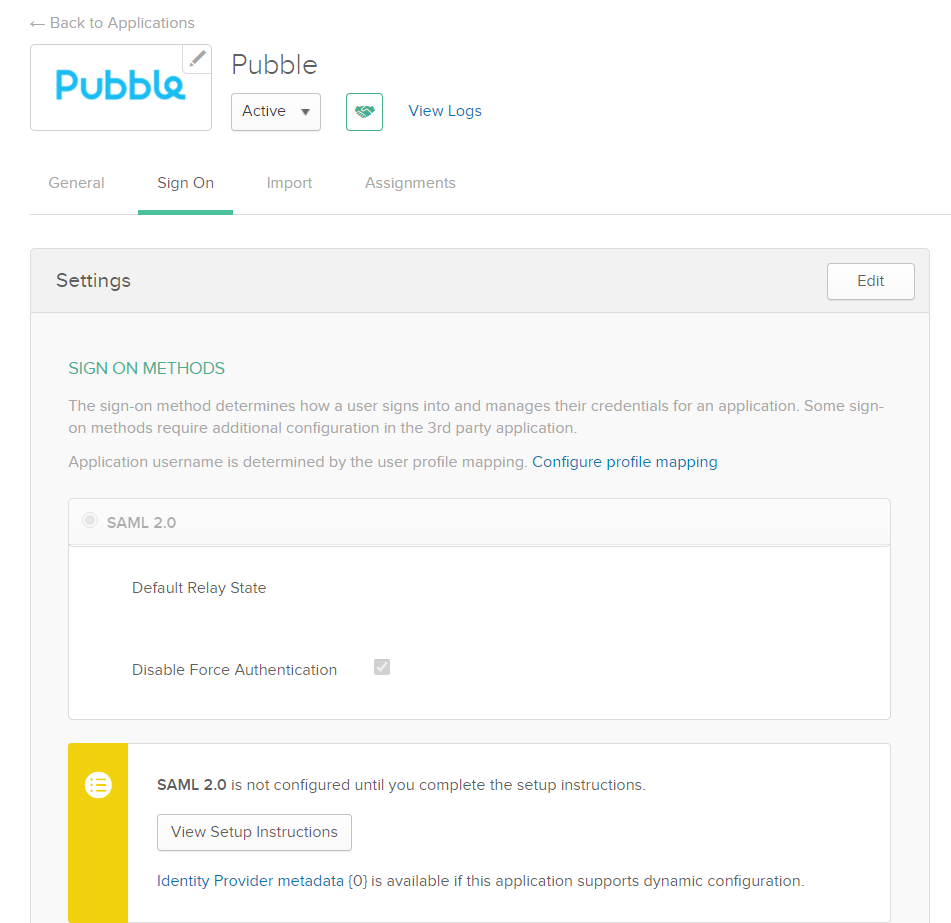
View Setup Instructions
Next go to your Pubble admin center in a new tab and navigate to Community > Integrations
Where Okta is listed click "Add"
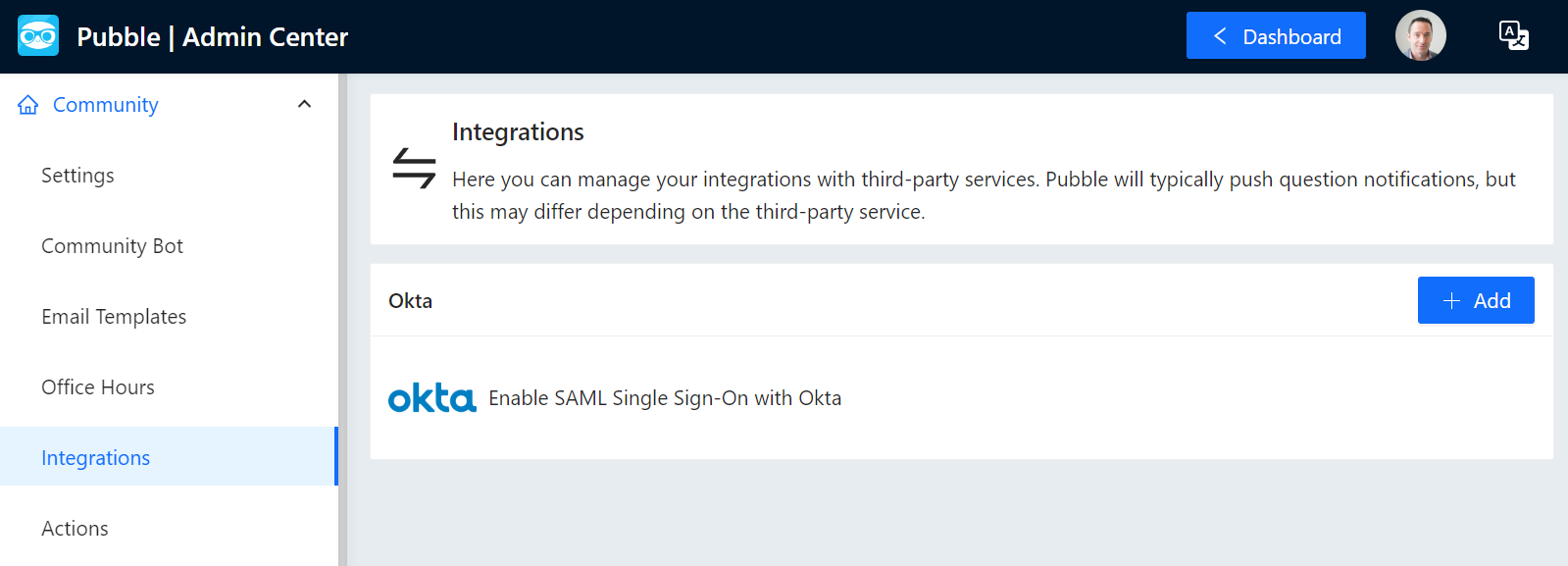
Select the Okta module
In the next page paste the SAML metadata into the form and click "Next". This will complete the set up on Pubble
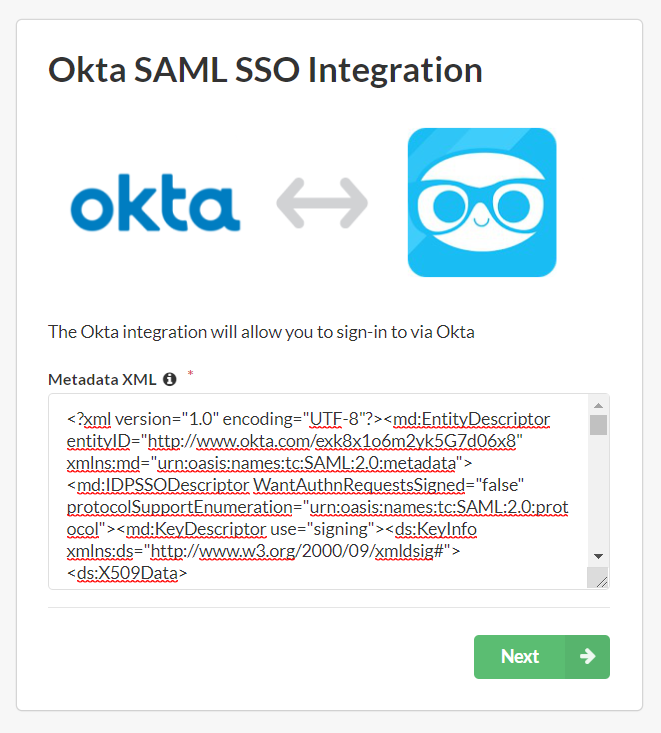
Paste the SAML metadata
Return to the Okta admin panel and select the "Assignments" tab
Click "Assign" and choose if you want to assign it to a person or a group. If you want to assign it to all users, click Assign to Groups.
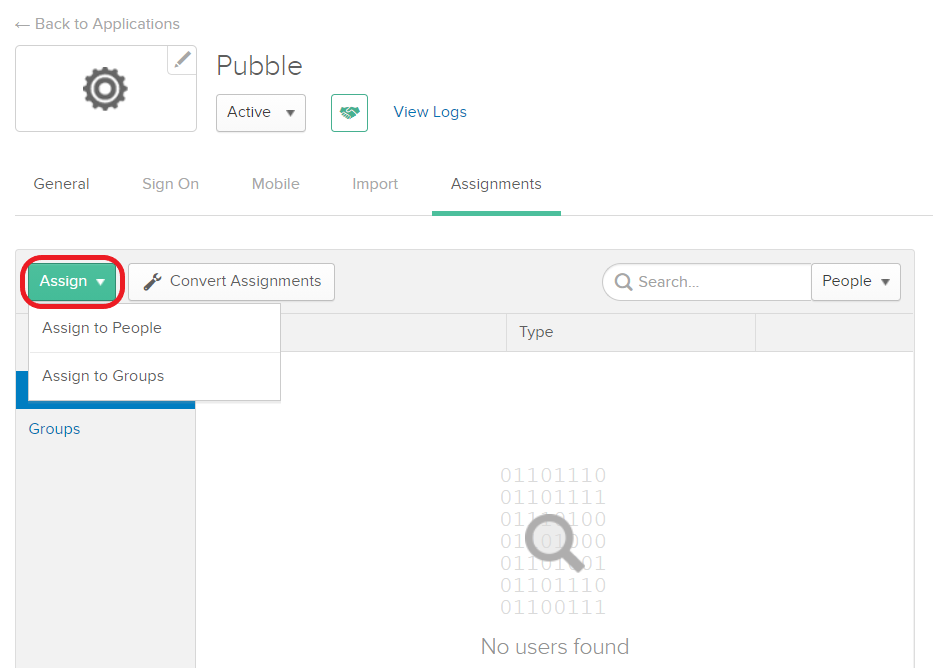
Assign to users
Click "Assign" on Everyone to assign to all your users
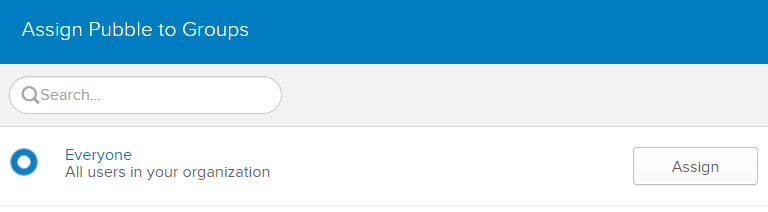
Assign to all users
Click "Done"
The set up is now complete. You should be able to sign into Pubble from the chiclet in your Okta dashboard
Configuring Okta with a custom app
In the Okta admin panel go to "Applications" in the menu and then click "Add Application"
Click "Create New App"
In the Create a New Application Integration window, select the following options:
Platform: Web
Sign on method: SAML 2.0
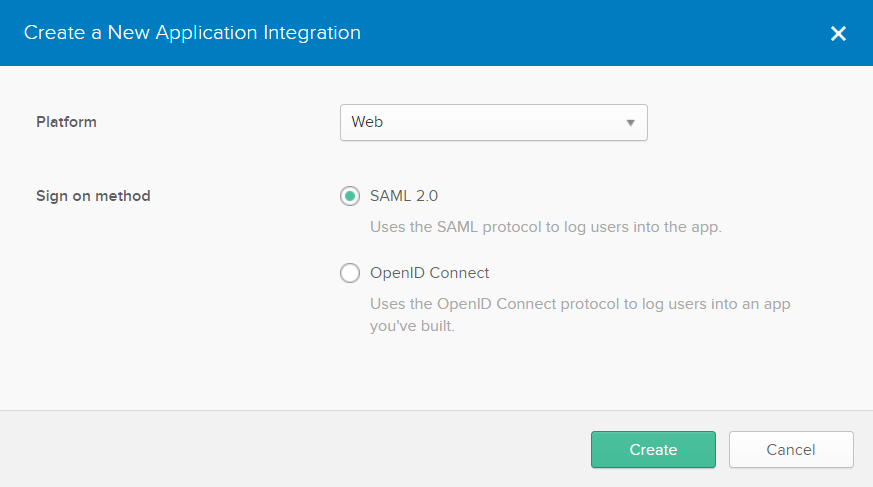
Create New App
Click "Create"
In the nest General Settings step, set the following values:
App Name: Type Pubble or a similar name
(Optional) App logo: Upload the Pubble logo.
(Optional) App visibility: Check these options if you would like the Pubble custom app to show to your users in Okta.
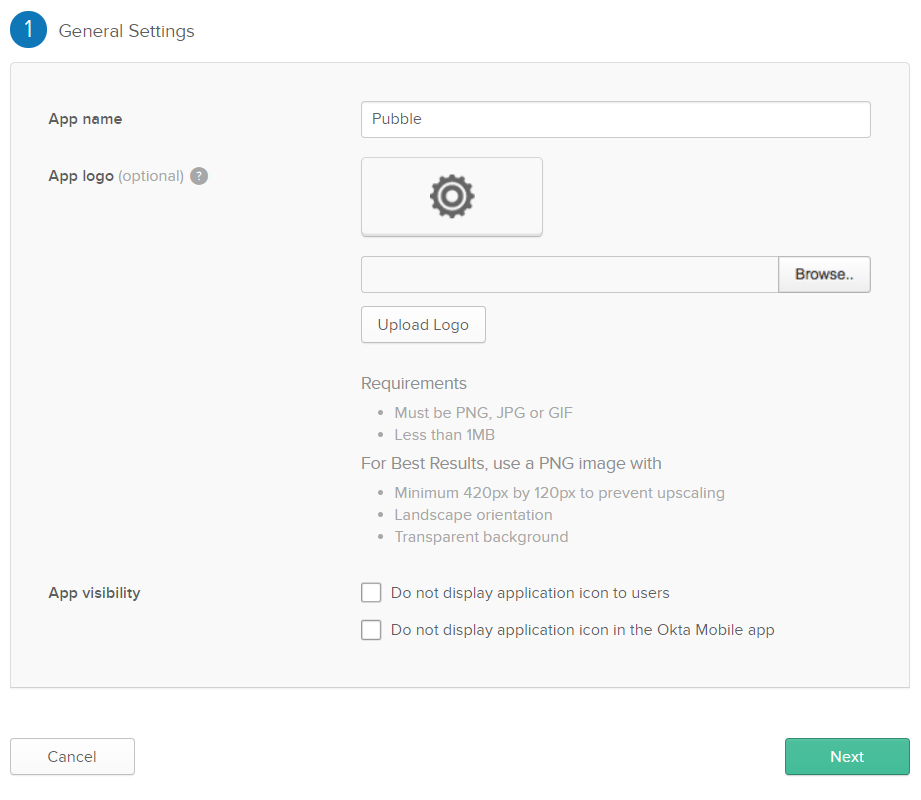
General Settings
Click "Next"
In the next step you will configure the SAML settings.
Single sign on URL:Type the following URL replacing [yourshortname] with your Pubble community subdomain: https://[yourshortname].pubble.io/integration/okta/signin
Check Use this for Recipient URL and Destination URL
Leave Allow this app to request other SSO URLs unchecked
Audience URI (SP Entity ID): "http://pubble.io/"
Default RelayState: Leave blank.
Name ID Format: Select EmailAddress.
Application username: Select Email.
Click Show Advanced Settings.
Response: Choose Signed.
Assertion Signature: Choose Signed.
Signature Algorithm: Choose RSA-SHA256.
Digest Algorithm: Choose SHA256.
Assertion Encryption: Choose Unencrypted.
Enable Single Signout: Leave unchecked.
Authentication context class: Choose PasswordProtectedTransport.
Honor Force Authentication: Choose Yes.
SAML Issuer ID: Type http://www.okta.com/${org.externalKey}.
Attribute Statements:
Group Attribute Statements: Leave blank.
Preview the SAML Assertion: You can click to preview the SAML assertion.
| Name | Format | Value |
|---|---|---|
| Basic | user.email | |
| firstName | Basic | user.firstName |
| lastName | Basic | user.lastName |
Click "Next"
On the next page select "I'm an Okta customer adding an internal app" and click "Finish".
You will be directed to the "Sign On" tab, there click "View Setup Instructions"
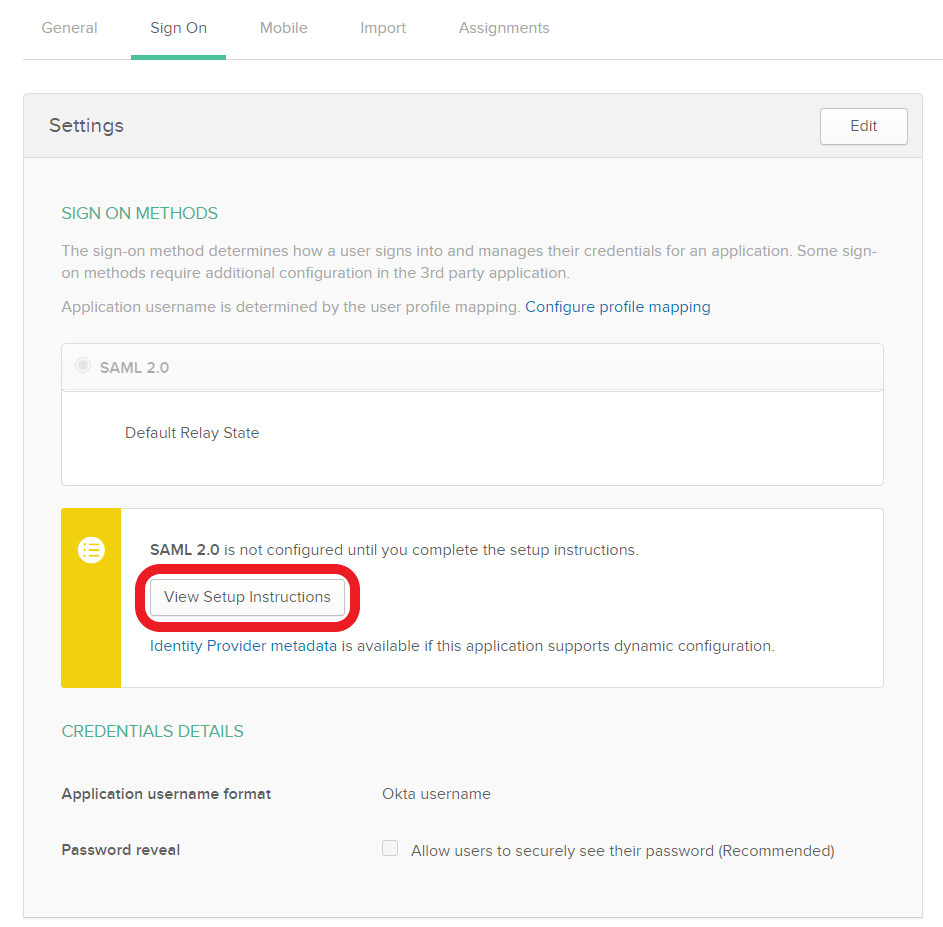
SAML Configuration
This page will give you the deatils you need to configure SAML on Pubble
Scroll to the bottom "Optional" area and copy the SAML metadata
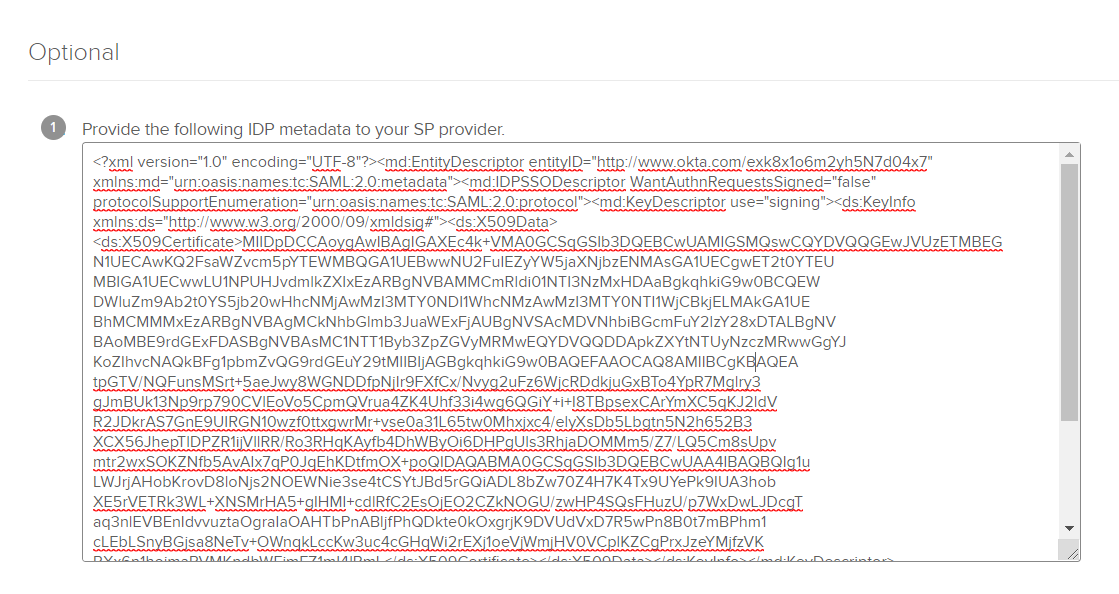
Copy the metadata
Next go to your Pubble admin center in a new tab and navigate to Community > Integrations
Where Okta is listed click "Add"
Select the Okta module
In the next page paste the SAML metadata into the form and click "Next". This will complete the set up on Pubble
Paste the SAML metadata
Return to the Okta admin panel and select the "Assignments" tab
Click "Assign" and choose if you want to assign it to a person or a group. If you want to assign it to all users, click Assign to Groups.
Assign to users
Click "Assign" on Everyone to assign to all your users
Assign to all users
Click "Done"
The set up is now complete. You should be able to sign into Pubble from the chiclet in your Okta dashboard